For: Student · 3 steps
How to use your student home
When you sign in you land on your own home page. It shows what is due, one next step picked for you, how far you are through each unit and your tools, so you can start in a few seconds.
The screenshots are of the real site with a made-up demo school: every name in them is fictional.
Open my home →-
See your homework
Your homework lists what is due, with Carry on, and what you have handed in, with View. All homework → opens My homework.
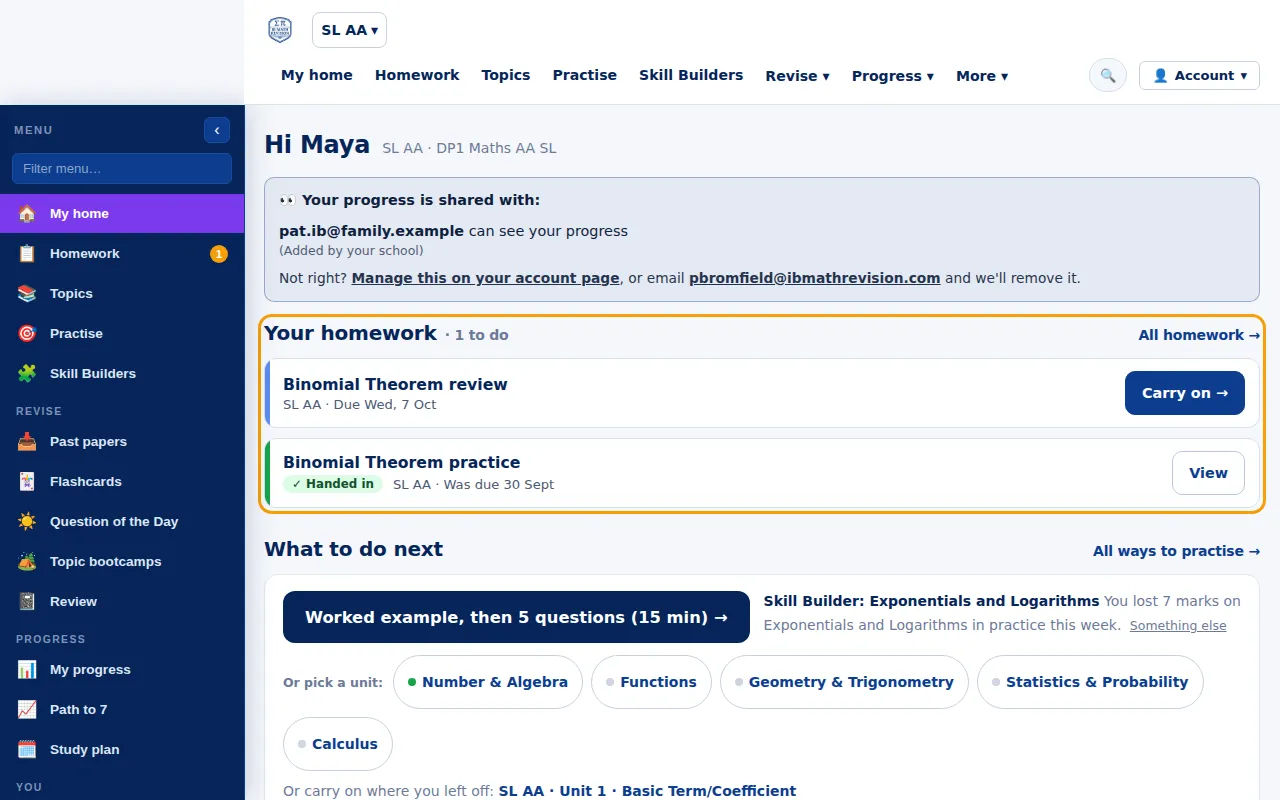
Step 1: A demo student's home page with the homework list ringed. Full size -
Start What to do next
What to do next is one suggested next step, picked from your practice and mastery: for example a Skill Builder on a topic where you lost marks this week. Or pick a unit, or carry on where you left off.
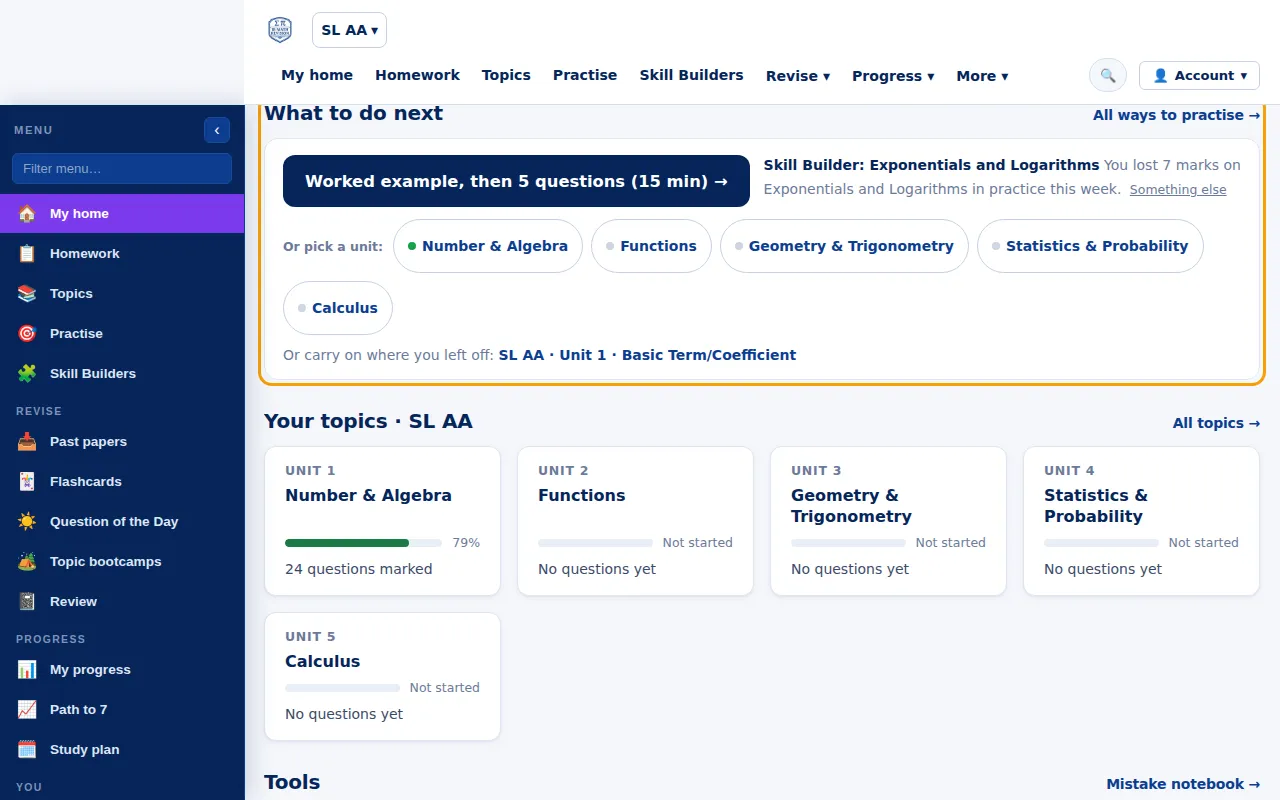
Step 2: What to do next with a suggested Skill Builder and unit buttons ringed. Full size -
Check your topics and open a tool
Your topics shows how far you are through each unit. Tools has past and prediction papers, My mastery and Due for review (questions you missed, back on time), with More tools for the rest. From your class lists the lessons your teacher has logged.
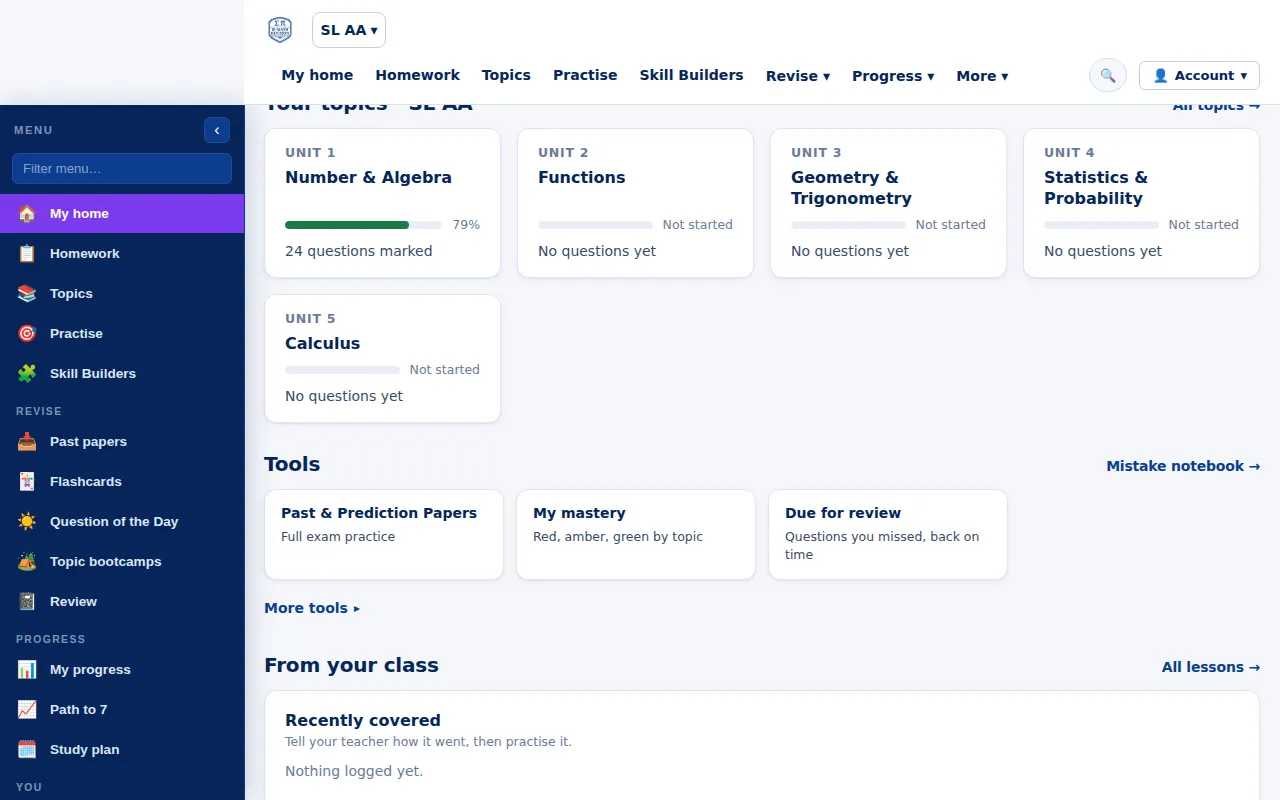
Step 3: Your topics with unit progress bars and the tools below. Full size
Good to know
- Lost marks go to your Mistake notebook: press Fix my mistakes there for a set of up to 5 similar questions.
- Exams coming up? The Study planner builds a week-by-week revision timetable from your mastery.