For: Teacher · 4 steps
How to set homework and see it handed in
Set work sends homework to a class: questions from the bank, questions you pick or your own PDF worksheet. Students hand it in on their homework page, and it comes back to you in the Marking inbox and the Markbook.
The screenshots are of the real site with a made-up demo school: every name in them is fictional.
Open Set work →-
Give the work a title and a due date
From your class page press Set work (the class is already chosen). Type the title students will see, check the kind (homework or classwork) and the course, and pick a due date: Tomorrow, In 3 days, In a week or a date of your own.
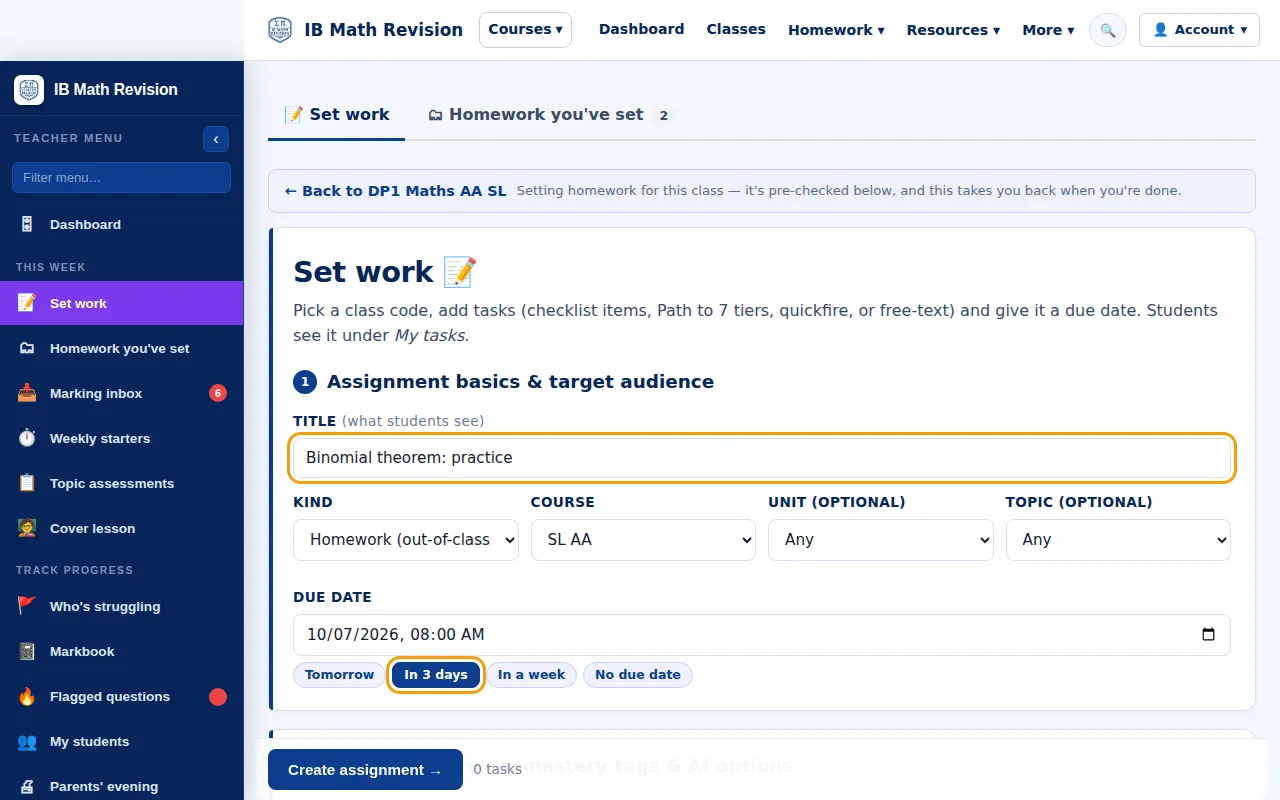
Step 1: Set work form with the title and the In 3 days due date ringed. Full size -
Tick the sub-topics and add the tasks
Search or open a unit and tick the sub-topics the homework covers, so it counts towards each student's mastery. Choose whether students upload their working: AI marking is on by default when they do. Then add the tasks (bank questions, questions you picked, or your own PDF worksheet) and press Create assignment.
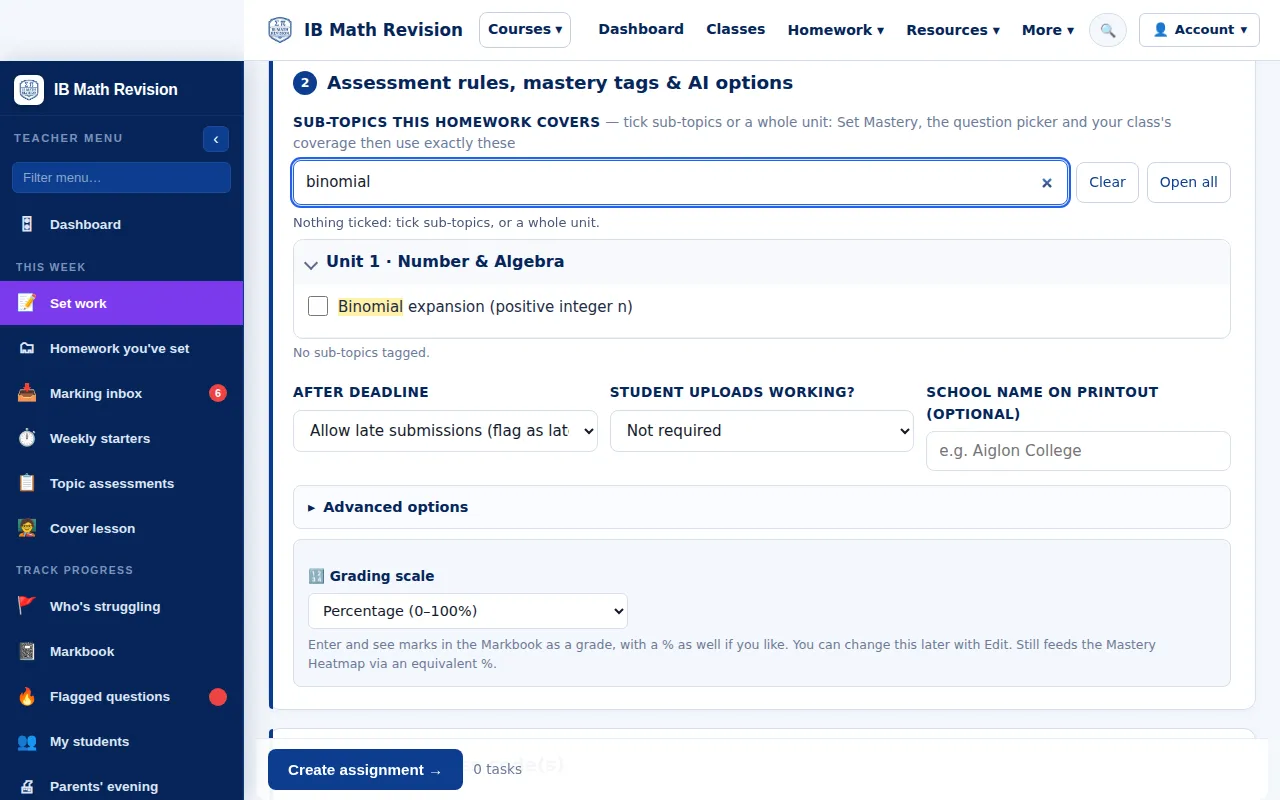
Step 2: Sub-topic search for binomial in the Set work form, with the upload and grading options below. Full size -
Students hand it in
Students see the homework on My homework and on their home page. They tick each task as they go, add photos of their working where asked and press Hand in. They can hand in part now and the rest later, up to the deadline.
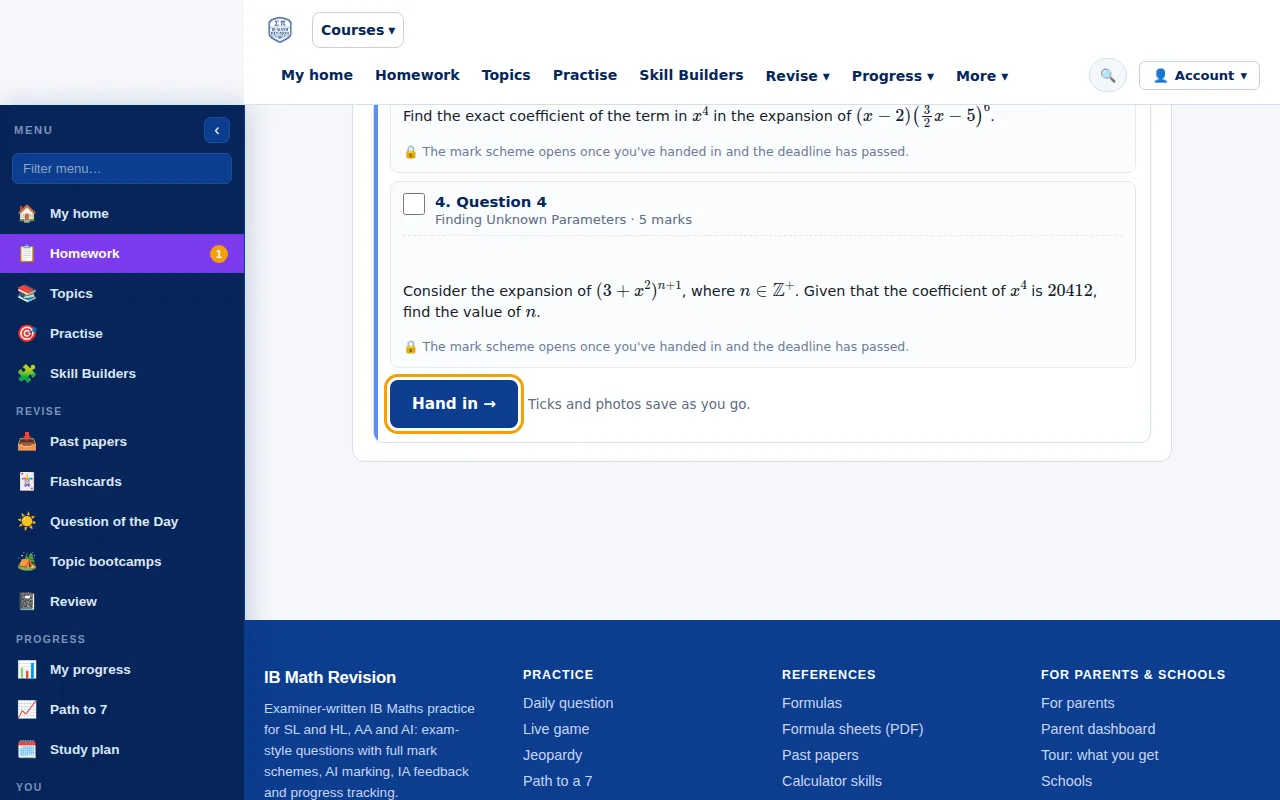
Step 3: A demo student's My homework page with the tasks ticked and the Hand in button ringed. Full size -
Review it in the Marking inbox
Hand-ins arrive in the Marking inbox, with each homework's average and how many have handed in. Accept the AI marks or change them, and approve, query or reject suggested mastery updates. Marks then show in the Markbook on the teacher dashboard.
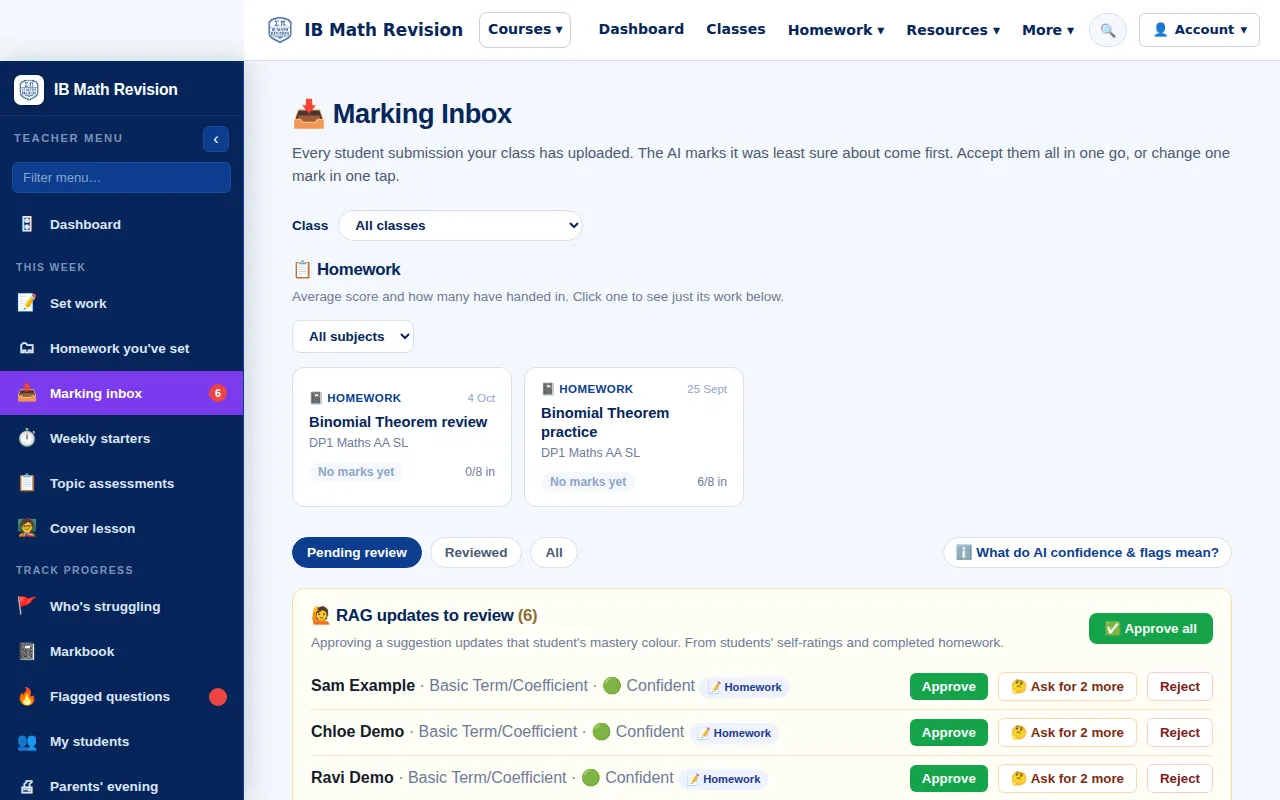
Step 4: Marking inbox with two demo homeworks and mastery updates to approve. Full size
Good to know
- Change a homework after setting it with Edit assessment in the Markbook column's ⋮ menu.
- More answers about uploads, resubmissions and grades are in the common questions.