For: Teacher · 4 steps
How to set up your teaching timetable
Your timetable tells the site when your classes are, so your dashboard can remind you to log each lesson you have taught and the scheme of work stays in step with your class.
The screenshots are of the real site with a made-up demo school: every name in them is fictional.
Open My timetable →-
Upload your timetable, or add lessons by hand
Open My timetable from the teacher dashboard. Drag in a photo or PDF of your timetable and the AI suggests a weekly grid matched to your classes for you to check, or press add lessons by hand.
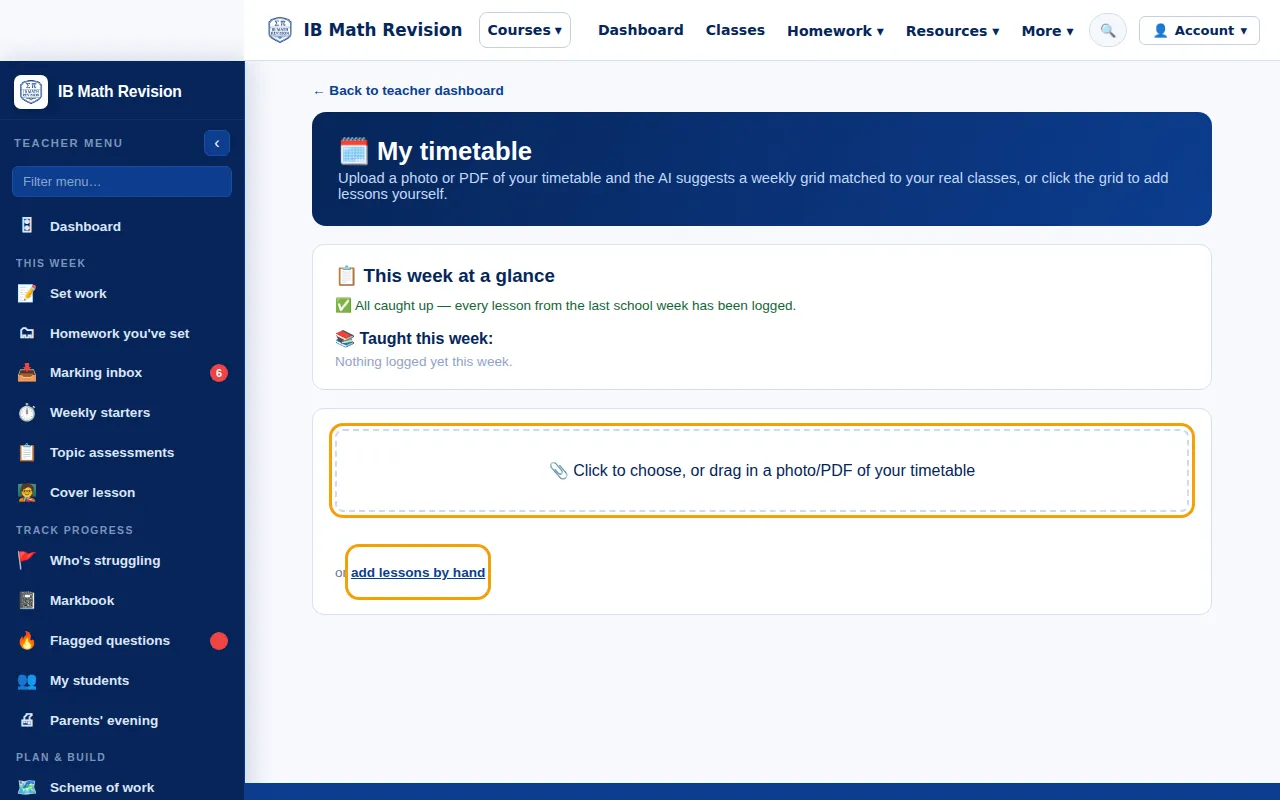
Step 1: My timetable page with the upload box and the add lessons by hand link ringed. Full size -
Add a lesson
Pick the class, the day, how often (every week, Week A only or Week B only) and the start and end times, then press Add lesson.
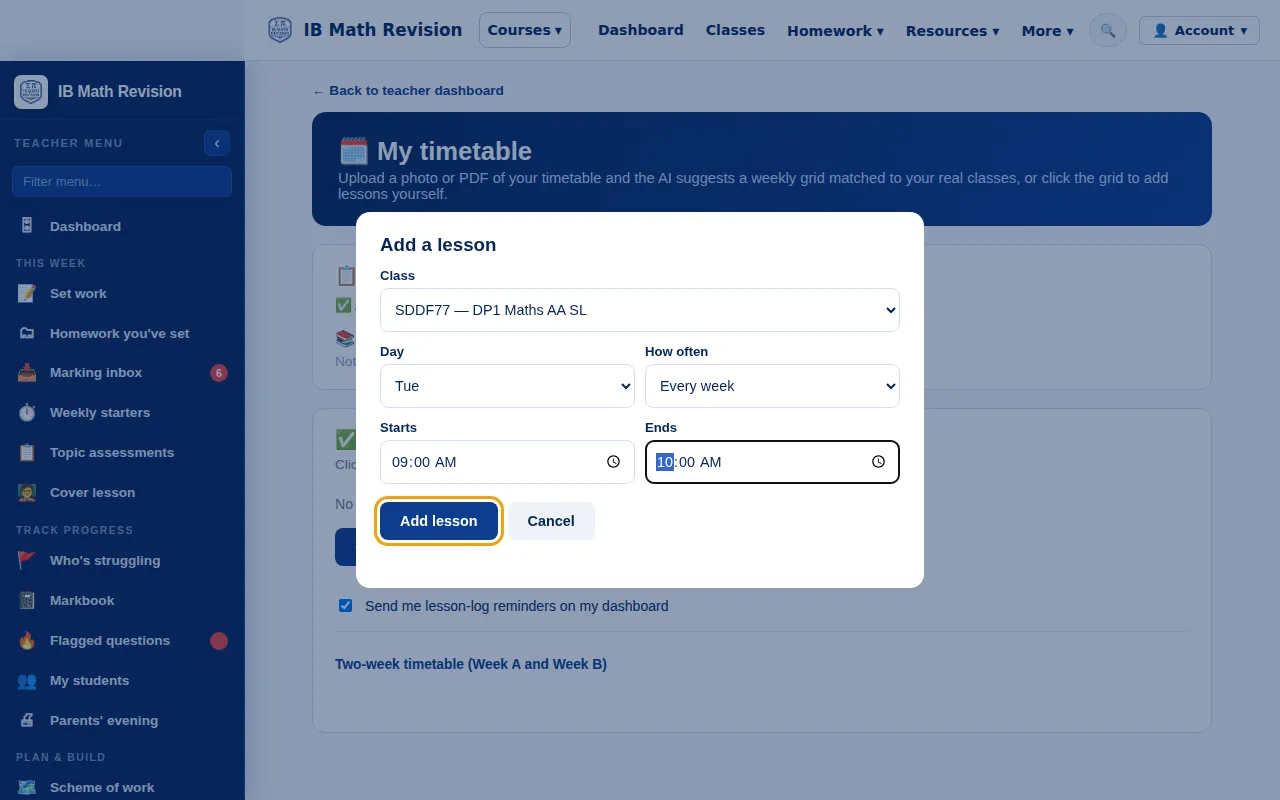
Step 2: Add a lesson window with class, day, how often, start and end time. Full size -
Check your weekly grid
Your lessons show on a Monday to Friday grid. Click a lesson to add planning notes or materials, or an empty space to add another lesson. Keep Send me lesson-log reminders on my dashboard ticked to get reminders.
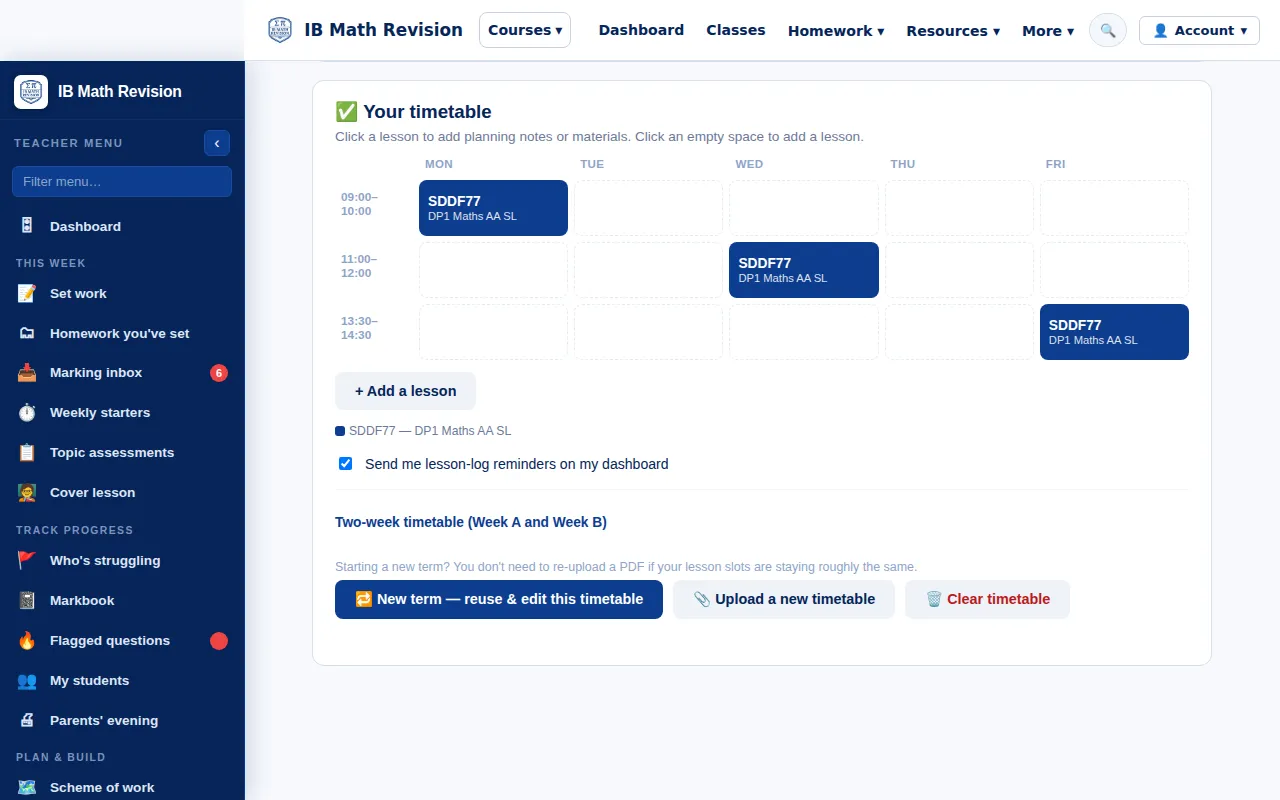
Step 3: A weekly timetable grid with three demo lessons on Monday, Wednesday and Friday. Full size -
Log the lessons you have taught
This week at a glance lists the lessons that still need logging, each with Log it, and what you have taught this week. Add your term dates once so reminders pause in the holidays.
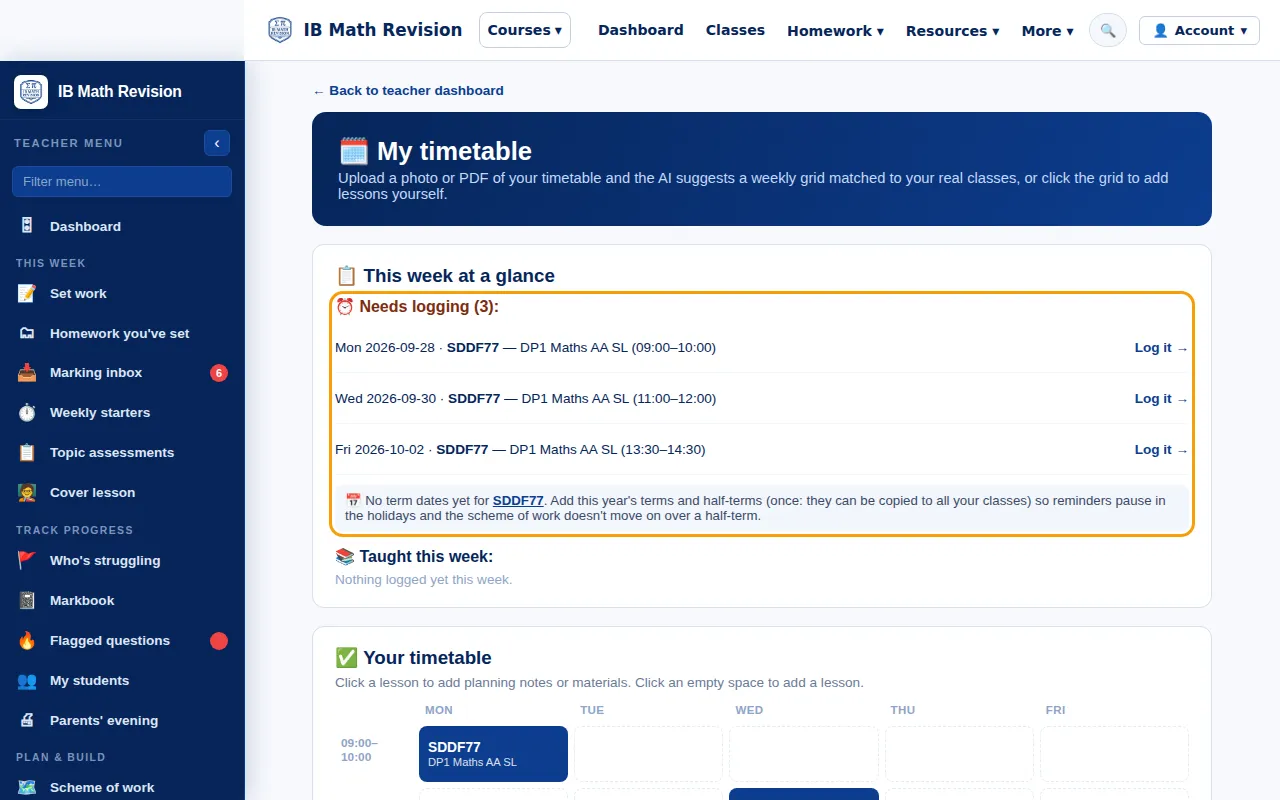
Step 4: This week at a glance listing three demo lessons that need logging. Full size
Good to know
- Starting a new term? New term — reuse & edit this timetable keeps your lesson slots, so there is no need to upload again.