For: Teacher · 5 steps
How to create a lesson for your class
Create lesson builds a lesson ready to teach from our checked question bank: a starter, objectives, worked examples, board questions, practice in three levels, an exit ticket and the answers. It takes about a minute.
The screenshots are of the real site with a made-up demo school: every name in them is fictional.
Open your classes →-
Open your class and press Create lesson
Open the class from your teacher dashboard. Under the class name, next to Set work, press Create lesson.
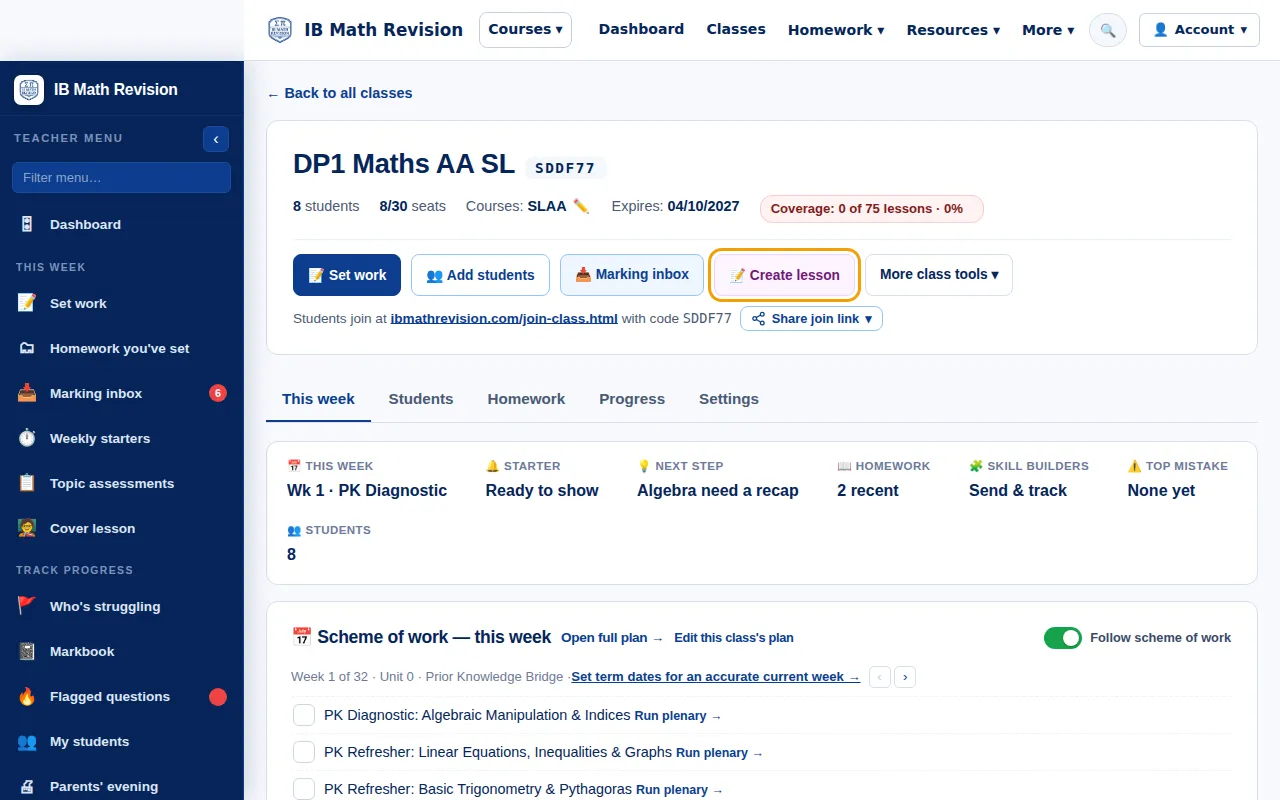
Step 1: Class page for a demo IB Maths AA SL class with the Create lesson button ringed. Full size -
Choose what to teach
Keep Next lesson in the scheme of work, or choose Choose a topic: search the sub-topics or open a unit and pick one sub-topic or one of its lessons.
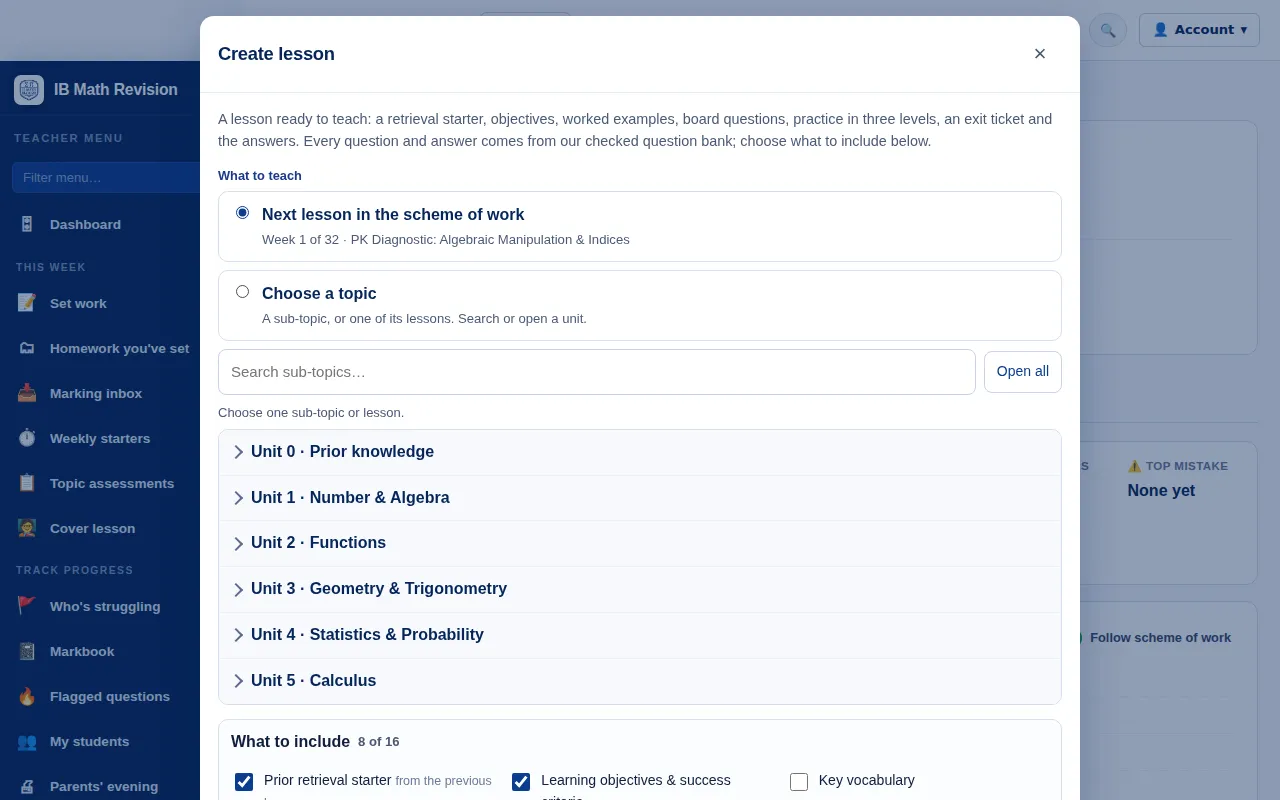
Step 2: Create lesson window: next lesson in the scheme of work or choose a topic, with the units listed. Full size -
Choose what to include, then make the lesson
Open What to include and tick the parts you want: retrieval starter, objectives and success criteria, notes, worked examples, board questions, practice in three levels (and how many questions per level), solutions, an exit ticket and more. Reset to the usual set puts the defaults back. Press Make lesson.
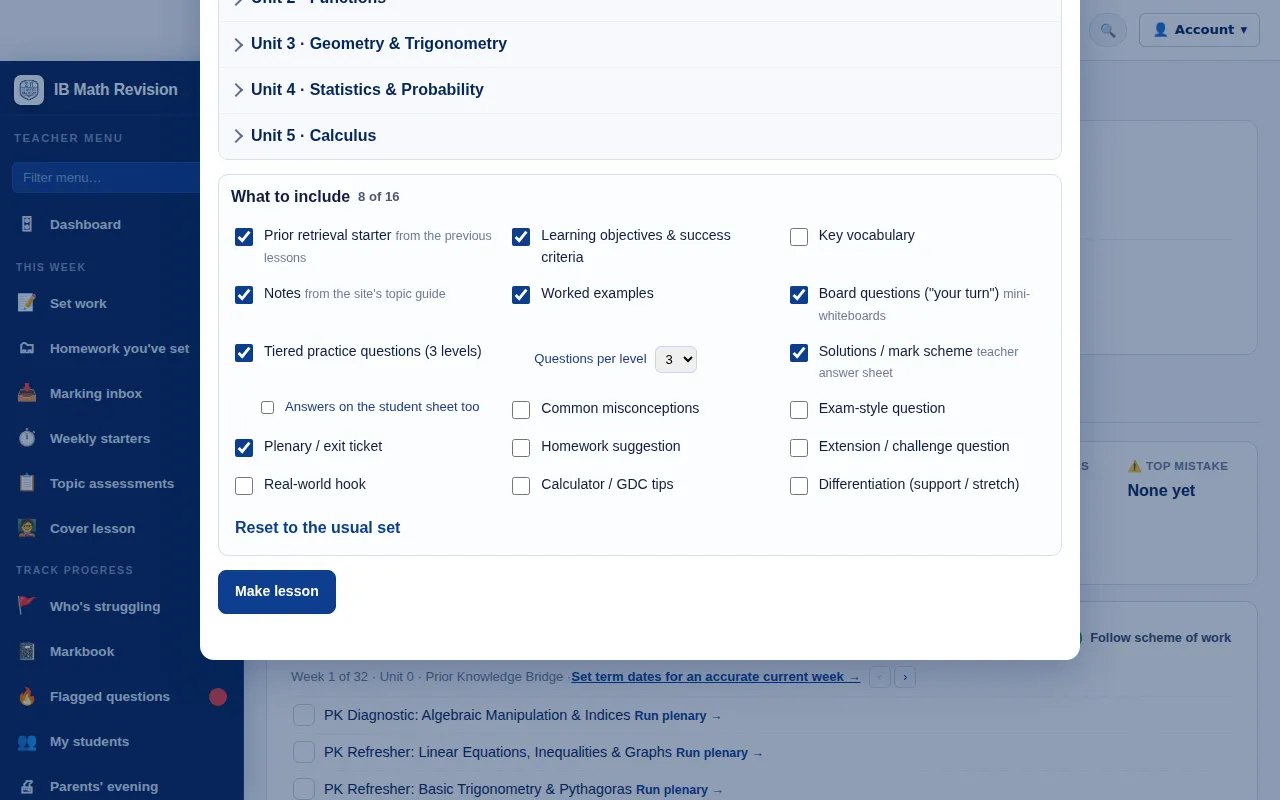
Step 3: What to include checklist with retrieval starter, worked examples, tiered practice and exit ticket ticked. Full size -
Check the lesson plan
The teacher copy has a timed plan, the learning objective and success criteria, then the examples and questions with their answers. Press Print student sheet or Print teacher copy, or Download as PPT. ← Change takes you back to the choices.
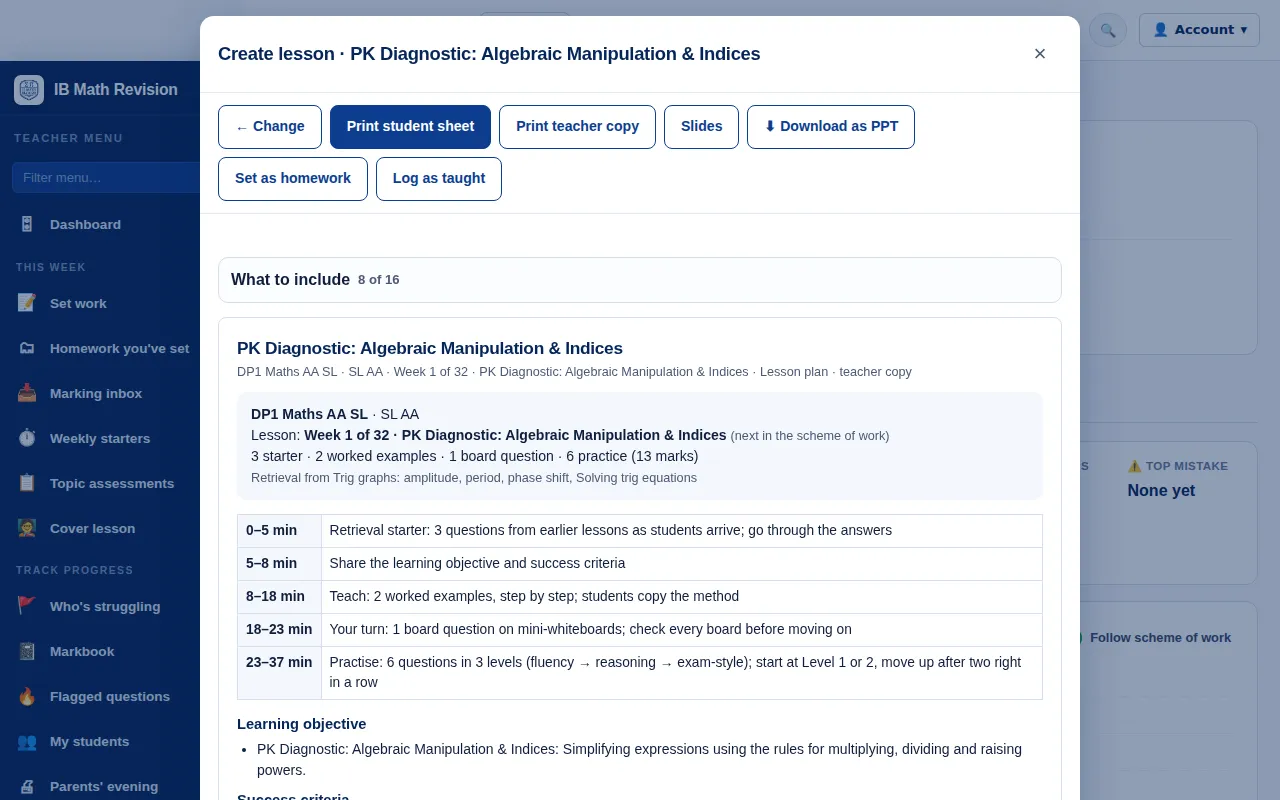
Step 4: A finished lesson plan with timings, the learning objective and buttons to print, show slides, download as PPT and set as homework. Full size -
Teach it from the board, then set homework and log it
Slides shows the lesson full screen, one problem at a time, with a timer; keys show a hint, the answer or the whole solution. Afterwards, Set as homework sets the practice questions for the class, due in a week: students see it on their homework page and it arrives in your Marking inbox and Markbook. Log as taught adds it to the class's lesson log and ticks it in the scheme of work, so the next lesson moves on.
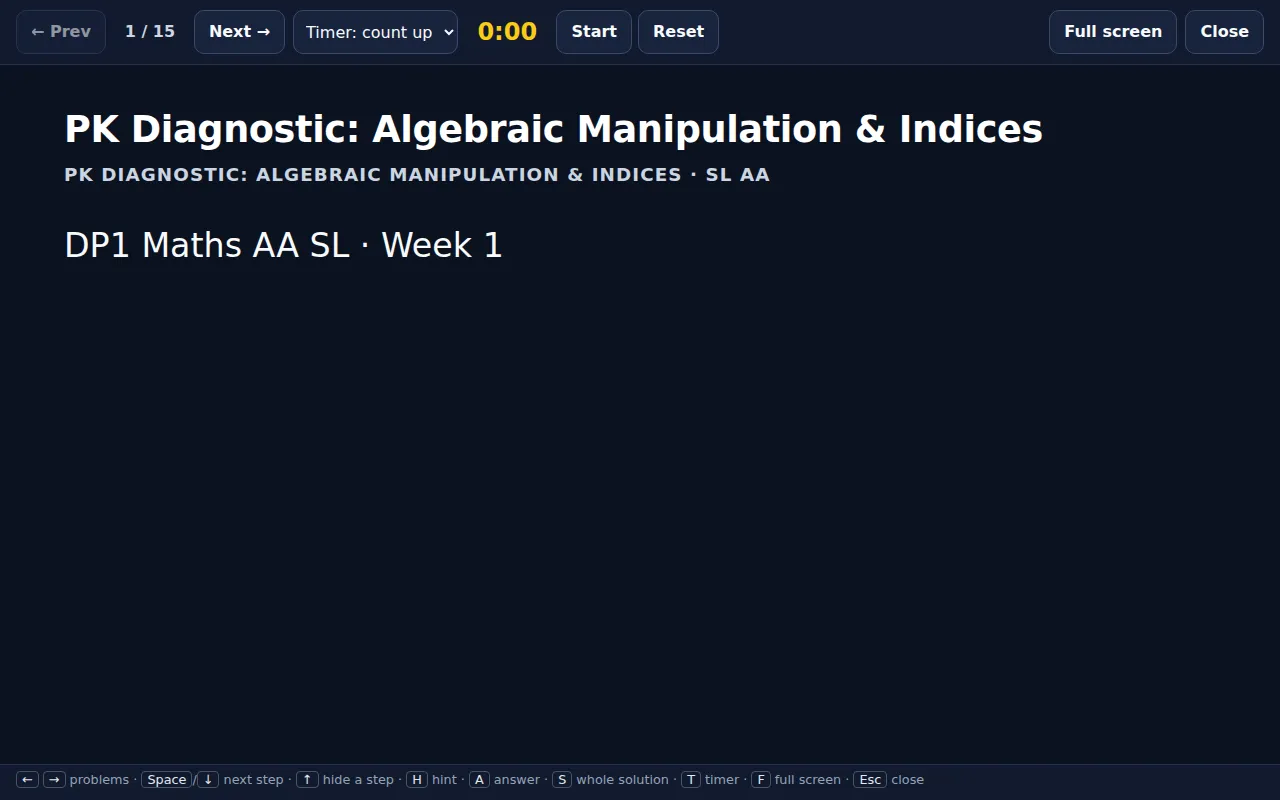
Step 5: The lesson shown as full-screen slides with problem navigation and a timer. Full size
Good to know
- Your choices in What to include are kept for the course, so the next lesson starts with the same set.
- For a quick end-of-lesson check on its own, use Plenary: 3 questions; for a day you are away, the cover lesson builds a pack from the next lesson.