TI-84 Plus CE lesson 5: PlySmlt2: polynomials and simultaneous equations
PlySmlt2 is the app that solves a polynomial or a system of linear equations in seconds. It comes preloaded on the TI-84 Plus CE, and because the IB tells schools not to use Press-to-Test on this calculator, it is still there in the exam. The skill is entering the coefficients correctly and then deciding which answers the question wants.
Objective
Solve any polynomial equation up to degree 10, and 2×2 or 3×3 linear systems, with the PlySmlt2 app, then pick out the solutions the question allows.
By the end, students can:
- open PlySmlt2 from apps and choose the Poly Root Finder or the Simult Eqn Solver
- set the degree, type every coefficient (0 for a missing term, (−) for a negative) and solve
- set the number of equations and unknowns and type a system row by row
- switch the app to a+bi to see complex roots
- reject solutions that are outside the domain of a model
Which courses this lesson suits
- IB Maths AA (SL and HL): Papers 2 and 3
- IB Maths AI (SL and HL): every paper
- A Level Maths (UK and IAL): calculator allowed in every paper
Complex roots (step 5) are for AA HL and AI HL. A Level students use PlySmlt2 to check roots they find by algebra.
Before you start
Check that PlySmlt2 is on the calculator: apps lists it. If a class set has been reset with the apps removed, it can be sent again from TI Connect CE. Each student needs their own calculator.
The key presses, step by step
Every key is shown as it is printed on the calculator, like 2nd or enter. A second function (printed above a key) is 2nd then that key; a menu item is chosen by its number, or by moving to it and pressing enter.
Press apps, move down to PlySmlt2 and press enter. Press any key at the title screen. The main menu appears.
The main menu is where you return between problems: the MAIN soft key (y=) brings you back from any screen in the app.
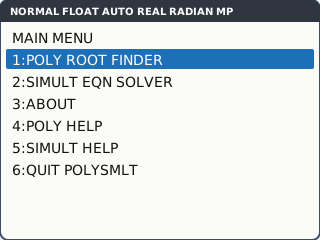
The PlySmlt2 main menu (item names shortened to fit our drawing) (our drawing of the TI-84 Plus CE screen, not a photo). Press 1 (Poly Root Finder). On the setup screen, move to the ORDER row and choose the degree, for example 3 for a cubic. Leave REAL selected for now. Then press graph: the word above it on the screen is NEXT.
The labels along the bottom of the screen belong to the five keys under the screen: y= window zoom trace graph.
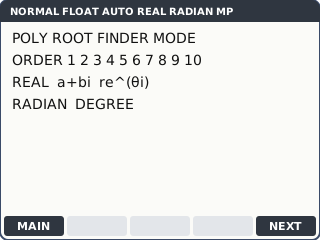
Setup: the order (degree) and the type of roots (our drawing shows only the rows used here) (our drawing of the TI-84 Plus CE screen, not a photo). Type the coefficients from the highest power down, pressing enter after each. For 3x² − 7x − 5 = 0 (order 2): a2 = 3, a1 = (−) 7, a0 = (−) 5. Then press graph (SOLVE).
A missing term is a 0, never a gap: for x³ − 4x + 1 the x² coefficient is 0.
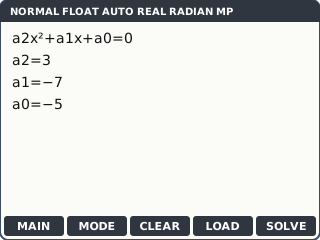
Coefficients from the highest power down (our drawing of the TI-84 Plus CE screen, not a photo). The roots appear as x1 and x2: 2.906717751 and −.5733844182 (the calculator leaves out the 0 before a decimal point). Write them to 3 s.f.: x = −0.573 or x = 2.91.
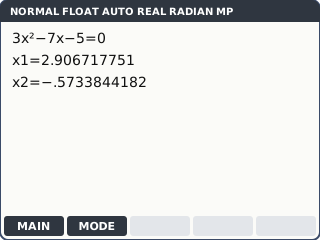
The solutions screen (the order of the roots may differ on yours) (our drawing of the TI-84 Plus CE screen, not a photo). Complex roots: press window (MODE) to go back to the setup screen. Choose ORDER 3 and a+bi, then graph (NEXT). Type the coefficients 1, 0, 1, 10 (with enter after each) and press graph (SOLVE). For x³ + x + 10 = 0 the roots are −2, 1+2i and 1−2i. In REAL mode you will not see the non-real roots as a+bi: switch to a+bi to see them.
Only AA HL and AI HL need complex roots. Everyone else leaves the app on REAL.
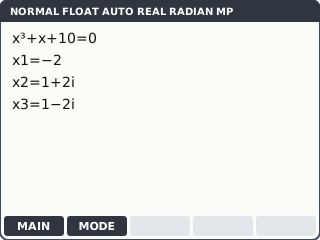
What the screen shows after this step (our drawing of the TI-84 Plus CE screen, not a photo). Simultaneous equations: y= (MAIN), then 2 (Simult Eqn Solver). Choose the number of equations and unknowns (3 and 3), graph (NEXT). Type each row a, b, c, d for ax + by + cz = d, with enter after each number, then graph (SOLVE).
Every equation must be in the form ax + by + cz = d first. Rearrange on paper before you type.
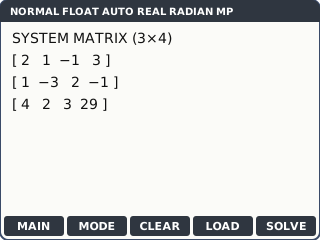
What the screen shows after this step (our drawing of the TI-84 Plus CE screen, not a photo).
Your turn: check your understanding
Try these straight after the key presses, on your own calculator, before looking at the answers.
- Solve 3x² − 7x − 5 = 0 with PlySmlt2 without looking back at the steps. Then change one coefficient: solve 3x² − 7x + 5 = 0. What happens in REAL mode, and what changes in a+bi mode?
- Solve x + 2y = 4 and 3x − y = 5 with the Simult Eqn Solver (2 equations, 2 unknowns).
- A student types the cubic x³ − 4x + 1 = 0 as order 3 with coefficients 1, −4, 1. What has gone wrong?
Show the answers
- x = −0.573 or 2.91. With +5 there are no real roots, so REAL mode does not give you any roots in a+bi form; in a+bi mode you get a pair of complex roots.
- x = 2, y = 1
- Only three numbers were typed for four coefficients: the x² term is missing. Type 1, 0, −4, 1.
Exam efficiency
- Write the equation you solved, then the roots: "4x³ − 70x² + 300x − 300 = 0 ⇒ x = 1.45 or 4.47 (GDC)".
- Read the domain before you write the answers: a length cannot be negative or bigger than the sheet allows.
- Use the app to check an algebraic answer in Paper 1-style practice: the roots should match what you factorised.
- y= (MAIN) gets you out of any screen in the app; 2nd mode (QUIT) leaves the app altogether.
Worked exam-style example
Question. An open box is made from a 20 cm by 15 cm sheet by cutting a square of side x cm from each corner. Its volume is 300 cm³. (a) Show that 4x³ − 70x² + 300x − 300 = 0. (b) Find the possible values of x. (c) A shop sells three box sizes. Two small, three medium and one large cost £41; one small, one medium and two large cost £26; three small, two medium and one large cost £39. Find the price of each.
(a) V = x(20 − 2x)(15 − 2x) = 300; expand and subtract 300 to get the cubic. (b) apps PlySmlt2, 1, order 3, graph (NEXT). Type 4, (−) 70, 300, (−) 300, then graph (SOLVE).
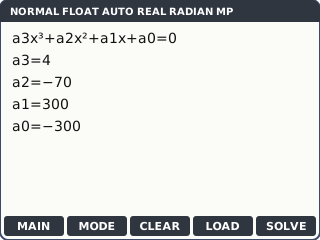
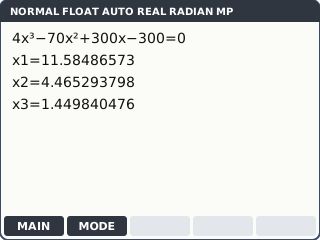
What the screen shows after this step (our drawing of the TI-84 Plus CE screen, not a photo). Three roots: 11.58486573, 4.465293798 and 1.449840476. The cut must leave a base, so 0 < x < 7.5 (half of 15). Reject 11.6.
Check one of the others makes sense: x = 1.45 leaves a base of about 17.1 cm by 12.1 cm.
What the screen shows after this step (our drawing of the TI-84 Plus CE screen, not a photo). (c) Let the prices be s, m and l. y= (MAIN), 2, 3 equations and 3 unknowns, graph (NEXT). Rows: 2, 3, 1, 41 / 1, 1, 2, 26 / 3, 2, 1, 39. graph (SOLVE): s = 5.75, m = 7.75, l = 6.25.
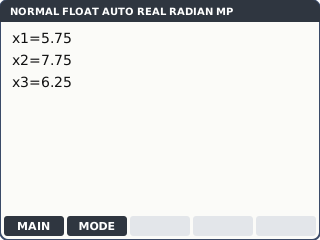
What the screen shows after this step (our drawing of the TI-84 Plus CE screen, not a photo).
What to write down
(b) 4x³ − 70x² + 300x − 300 = 0 ⇒ x = 1.45, 4.47 or 11.6 (GDC). Since 0 < x < 7.5, x = 1.45 or x = 4.47.
(c) 2s + 3m + l = 41, s + m + 2l = 26, 3s + 2m + l = 39 ⇒ small £5.75, medium £7.75, large £6.25. Check one equation: 2(5.75) + 3(7.75) + 6.25 = 41 ✓.
Practice
Do these on your own calculator. Write the answers to 3 significant figures unless the task says otherwise.
- Solve 2x³ − 3x² − 11x + 6 = 0.
- Solve x³ − 4x² + x + 3 = 0.
- Solve x⁴ − 5x² + 2x + 1 = 0. (Remember the missing x³ term.)
- (AA HL, AI HL) Find all the roots of x³ + x + 10 = 0.
- Solve 3x − 2y = 7 and 5x + 4y = 8.
- Solve 2x + y − z = 3, x − 3y + 2z = −1, 4x + 2y + 3z = 29.
Show the practice answers
- x = −2, 0.5 or 3
- x = −0.700, 1.24 or 3.46
- x = −2.38, −0.291, 0.751 or 1.92
- x = −2, 1+2i or 1−2i (set the app to a+bi)
- x = 2, y = −0.5
- x = 1.8, y = 4, z = 4.6
Common mistakes
- Leaving out a missing term: x⁴ − 5x² + 2x + 1 needs 1, 0, −5, 2, 1.
- Using − instead of (−) for a negative coefficient: the app reports an error or takes the wrong number.
- Typing an equation that is not in the form ax + by + cz = d: move every letter to the left first.
- Giving every root the app finds when the question has a domain: a box side of 11.6 cm cannot be cut from a 15 cm sheet.
- Looking for complex roots in REAL mode: switch the app to a+bi.
1-minute quick check
Answer these without looking back. Most need no calculation: they check that the key presses have stuck.
- Which key opens the list where PlySmlt2 is?
- How many coefficients do you type for a quartic (order 4)?
- Which key is SOLVE in PlySmlt2?
- Why is PlySmlt2 still there in an IB exam on the TI-84 Plus CE?
- Which mode shows complex roots?
Show the quick-check answers
- apps
- Five: a4 down to a0.
- graph, the key under the SOLVE label.
- The IB says not to use Press-to-Test on it (Press-to-Test blocks apps); the RAM and Archive Vars are reset instead.
- a+bi, set from the app's MODE screen.
Teaching this lesson (about 55 minutes)
| 0–5 min | Starter: solve x² − 5x + 6 = 0 by hand. Then ask: what about 4x³ − 70x² + 300x − 300 = 0? |
| 5–15 min | Steps 1–4: open PlySmlt2, setup, coefficients, solutions. Everyone solves 3x² − 7x − 5 = 0. |
| 15–22 min | Your turn tasks 1 and 3 in pairs: one partner types, the other checks every coefficient. |
| 22–30 min | Step 5 (complex roots, HL) and step 6 (systems). Your turn task 2. |
| 30–40 min | Worked example: the box and the prices. Discuss which roots to reject. |
| 40–52 min | Practice tasks 1–6; check the answers. |
| 52–55 min | 1-minute quick check. |
Students need their own TI-84 Plus CE. With a projector, the calculator-skills guides below have a Show on the board view and an animated walkthrough of the key presses.
Matching calculator guides
- How to solve equations, polynomials and simultaneous equations on the Casio fx-CG50, TI-84 Plus CE and TI-Nspire CX II
- How to find the roots and vertex of a quadratic on the Casio fx-CG50, TI-84 Plus CE and TI-Nspire CX II