TI-84 Plus CE lesson 1: Setup, the mode screen, angle mode and Ans
The first TI-84 Plus CE lesson: get every calculator into a known state, then build the habits that save time on every calculator paper. Most lost calculator marks start here, with the wrong angle mode or a rounded number typed back in.
Objective
Set up the TI-84 Plus CE for an exam and move around it without getting lost: the mode screen, angle mode, fractions or decimals, Ans, entry recall and the IB's reset rules.
By the end, students can:
- open the mode screen with mode and get back to the home screen with 2nd mode (QUIT)
- check and change the angle mode, and test it with sin 30
- turn an answer into a fraction or a decimal with math 1: ►Frac or 2: ►Dec
- reuse the last answer with 2nd (−) (ANS) and bring back an earlier line with 2nd enter (ENTRY)
- say what the IB asks for on the TI-84 Plus CE before an exam: a RAM and Archive Vars reset, not Press-to-Test
Which courses this lesson suits
- IB Maths AA (SL and HL): Papers 2 and 3
- IB Maths AI (SL and HL): every paper
- A Level Maths (UK and IAL): calculator allowed in every paper
Before you start
Each student needs a TI-84 Plus CE, charged. If you reset the calculators (step 6), warn students first: resetting the RAM deletes lists, variables and programs.
The key presses, step by step
Every key is shown as it is printed on the calculator, like 2nd or enter. A second function (printed above a key) is 2nd then that key; a menu item is chosen by its number, or by moving to it and pressing enter.
Press mode. The mode screen lists the settings, one per line. Move with the arrow keys; the setting that is highlighted is the one in use. Press enter on a word to choose it.
To get back to the home screen from any screen, press 2nd mode (QUIT). clear clears the line you are typing, and pressing it again on an empty line clears the home screen.
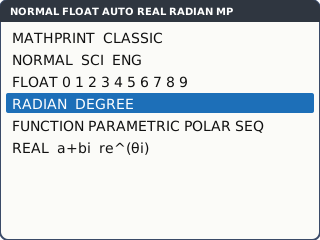
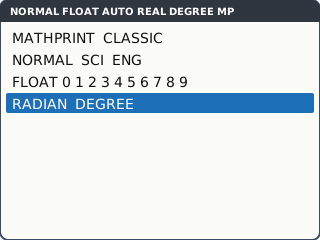
The mode screen (the lines this series uses; some lines are left out) (our drawing of the TI-84 Plus CE screen, not a photo). Move down to the RADIAN DEGREE line. Move across to RADIAN and press enter for calculus and anything in radians, or to DEGREE for a triangle or bearings question. Then 2nd mode (QUIT).
The status bar at the top of every screen shows RADIAN or DEGREE, so you can check without opening the mode screen.
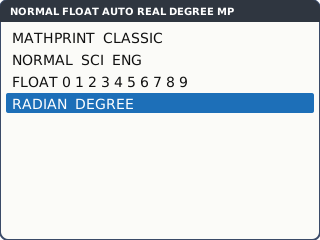
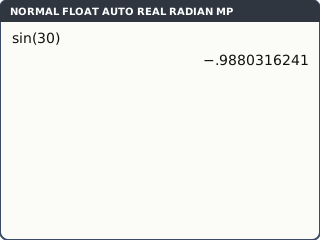
DEGREE chosen: the status bar at the top changes too (our drawing of the TI-84 Plus CE screen, not a photo). Test the mode on the home screen. Press sin 30 ) enter. In degrees the answer is 0.5. In radians it is −0.9880316241 (the TI-84 leaves out the 0 before the decimal point: it shows −.9880316241).
The sin key opens a bracket for you: sin(. Close it before you type anything else.
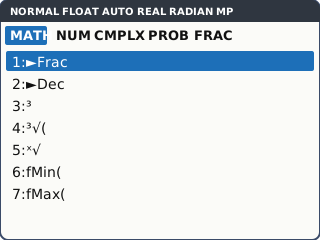
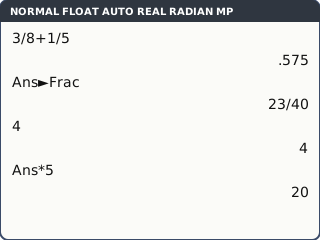
sin(30) in RADIAN mode: not 0.5, so you are not in degrees (our drawing of the TI-84 Plus CE screen, not a photo). Fractions and decimals. Type 3 ÷ 8 + 1 ÷ 5 enter: the answer is a decimal, 0.575. Press math: the MATH menu opens on its MATH tab. Choose 1: ►Frac and press enter: 23/40. 2: ►Dec turns a fraction back into a decimal.
The calculator puts Ans►Frac on the line for you, so it works on the last answer.
What the screen shows after this step (our drawing of the TI-84 Plus CE screen, not a photo). Ans and entry recall. Type 4 enter, then × 5 enter: the calculator starts the line with Ans. Ans on its own is 2nd (−) (ANS).
2nd enter (ENTRY) brings back the last line you typed; press it again to go further back. Change a number and press enter: no retyping.
Ans and ENTRY carry every digit forward. Typing a rounded number back in is where accuracy is lost.
What the screen shows after this step (our drawing of the TI-84 Plus CE screen, not a photo). Before an IB exam: the IB says do not use Press-to-Test on the TI-84 Plus CE, because it blocks important apps such as PlySmlt2. Instead, the calculator is reset: 2nd + (MEM), 7: Reset, then on the RAM menu All RAM and Reset; then 7: Reset again, ARCHIVE, Vars and Reset.
Do not choose ALL (all memory): that deletes every app, PlySmlt2 included.
For A Level, ask your exams officer whether they want Press-to-Test or a reset. Your IB coordinator has the IB's current list of approved apps.
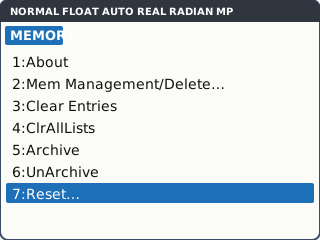
The MEM menu (2nd +): 7: Reset… is where the IB reset starts (our drawing of the TI-84 Plus CE screen, not a photo).
Your turn: check your understanding
Try these straight after the key presses, on your own calculator, before looking at the answers.
- Work out tan 40 in DEGREE mode. Change to RADIAN mode, press 2nd enter (ENTRY) and enter. Write down both answers.
- Work out 2 ÷ 5 + 1 ÷ 6. Give it as a fraction with math 1: ►Frac, and as a decimal to 3 s.f.
- Type 3 enter. Then type × 2 + 1 enter and press enter once more. What are the two answers?
Show the answers
- DEGREE: 0.839. RADIAN: −1.12 (3 s.f.). The same answer twice means the mode did not change.
- 17/30 = 0.567
- 7, then 15. The second enter repeats Ans*2+1 on the new Ans.
Exam efficiency
- First 30 seconds of every calculator paper: look at the status bar for RADIAN or DEGREE. If in doubt, sin(30).
- Never type a rounded answer back in: use 2nd (−) (ANS), 2nd enter (ENTRY), or store it (lesson 2).
- clear clears the line you are typing; it does not clear stored values.
- After an error message, choose 1: Quit to go back, or 2: Goto to jump to the mistake and fix it.
Worked exam-style example
Question. In triangle PQR, PQ = 9.4 cm, PR = 6.3 cm and angle QPR = 52°. (a) Find QR. (b) Find angle PQR. (c) Find the area of the triangle.
Check the status bar says DEGREE. If not: mode, DEGREE, enter, 2nd mode (QUIT).
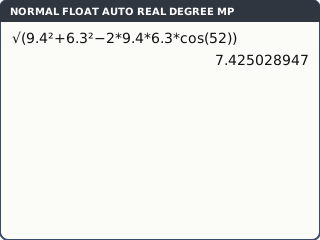
What the screen shows after this step (our drawing of the TI-84 Plus CE screen, not a photo). (a) The cosine rule in one line. √( is 2nd x². Type √(9.4² + 6.3² − 2 × 9.4 × 6.3 × cos(52)) enter: 7.425028947.
What the screen shows after this step (our drawing of the TI-84 Plus CE screen, not a photo). (b) Do this straight after (a), while Ans holds the full QR. Angle PQR is opposite PR, so sin⁻¹ (2nd sin) (6.3 × sin(52) ÷ Ans) enter: 41.96007303.
PR is shorter than QR, so angle PQR is less than 52° and the sine rule gives it directly (no obtuse case to worry about).
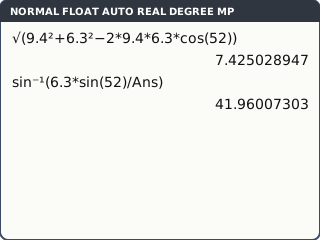
What the screen shows after this step (our drawing of the TI-84 Plus CE screen, not a photo). (c) 0.5 × 9.4 × 6.3 × sin(52) enter: 23.33299841.
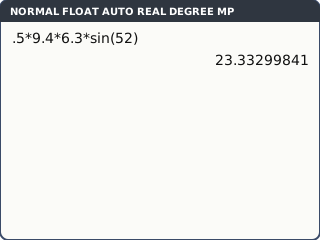
What the screen shows after this step (our drawing of the TI-84 Plus CE screen, not a photo).
What to write down
(a) QR² = 9.4² + 6.3² − 2(9.4)(6.3)cos 52°, so QR = 7.43 cm (3 s.f.).
(b) sin Q = 6.3 sin 52° ÷ QR, so angle PQR = 42.0°.
(c) Area = ½(9.4)(6.3)sin 52° = 23.3 cm².
Practice
Do these on your own calculator. Write the answers to 3 significant figures unless the task says otherwise.
- Work out cos 25 in DEGREE mode and in RADIAN mode.
- Work out 5 ÷ 6 − 3 ÷ 7 as a fraction (math 1: ►Frac) and as a decimal to 3 s.f.
- Type 1 enter. Then type √( (2nd x²) 2nd (−) + 3 ) enter and keep pressing enter. What number does the answer settle at, to 3 s.f.?
- Work out 1500 × 1.04⁸. Then press 2nd enter (ENTRY), change the 8 to 12 and press enter. Give both answers to the nearest whole number.
- In the mode screen choose SCI, and 2 on the FLOAT line. What does 98765 × 432 show? Then set NORMAL and FLOAT again.
Show the practice answers
- DEGREE: 0.906. RADIAN: 0.991.
- 17/42 = 0.405
- 2.30
- 2053 and 2402
- 4.27E7, which you write as 4.27 × 10⁷. Leaving FLOAT on 2 would display every later answer to 2 decimal places, so you would copy too few figures.
Common mistakes
- Wrong angle mode: a triangle in RADIAN mode, or calculus in DEGREE mode, gives a wrong answer with no warning. Check the status bar.
- Not closing the bracket after sin(, cos( or √(: sin(30+5 is read as sin(35). Close it straight after the angle.
- Using − (subtract) instead of (−) (negative). At the start of a line the calculator writes Ans− and gives a wrong answer with no warning; inside an expression such as 2 × −3 you get ERROR: SYNTAX.
- Leaving FLOAT set to 2 or 3 after a rounding exercise: the calculator still keeps every digit, but every later answer is displayed to 2 or 3 decimal places, so you copy too few figures.
- Using Press-to-Test before an IB exam, or resetting ALL memory: both remove apps the IB lets you use, such as PlySmlt2.
1-minute quick check
Answer these without looking back. Most need no calculation: they check that the key presses have stuck.
- Which keys go back to the home screen from any screen?
- sin(30) gives −0.988. Which mode is the calculator in?
- Which keys give ANS on its own?
- Which keys bring back the last line you typed?
- Before an IB exam, should the TI-84 Plus CE be put into Press-to-Test?
Show the quick-check answers
- 2nd mode (QUIT)
- RADIAN
- 2nd (−)
- 2nd enter (ENTRY)
- No. The IB asks for a RAM and Archive Vars reset instead, so approved apps such as PlySmlt2 stay.
Teaching this lesson (about 55 minutes)
| 0–5 min | Starter: everyone types sin(30). Who gets 0.5 and who gets −0.988? Why? |
| 5–15 min | Steps 1–3: the mode screen, QUIT, the status bar and the sin(30) test. |
| 15–25 min | Steps 4–5: ►Frac and ►Dec, ANS and ENTRY. Show what a rounded number typed back in does. |
| 25–32 min | Your turn tasks 1–3; students check each other's answers. |
| 32–42 min | Worked example: the triangle in DEGREE mode, using Ans for part (b). |
| 42–50 min | Practice tasks 1–5. |
| 50–55 min | Step 6 (the IB reset, on one calculator only) and the 1-minute quick check. |
Students need their own TI-84 Plus CE. With a projector, the calculator-skills guides below have a Show on the board view and an animated walkthrough of the key presses.
Matching calculator guides
- How do I know if my calculator is in radians or degrees?
- How to reset your calculator before an exam
- How to put your calculator in exam mode (and exit it)
- How to change a fraction to a decimal on your calculator (and back)
- How to use standard form and round to significant figures on the Casio fx-CG50, TI-84 Plus CE and TI-Nspire CX II