Casio fx-CG50 lesson 3: The Graph menu: View Window, Zoom and Trace
Half of all calculator questions start with a graph, and most graph trouble is a bad window: a curve that is off the screen, squashed flat or cut off at the important part. This lesson makes choosing a window a quick, deliberate step.
Objective
Draw any function on the fx-CG50 and choose a View Window that shows the part the question is about, using V-Window, Zoom and Trace.
By the end, students can:
- enter functions as Y1, Y2 … with the X,θ,T key and draw them with F6 (DRAW)
- turn a graph off and on with F1 (SELECT) and delete one with F2 (DELETE)
- set Xmin, Xmax, Ymin and Ymax in V-Window (SHIFT F3) from the question's domain and the function's values
- use Zoom AUTO and Zoom BOX, and read rough values with Trace (SHIFT F1)
- change the view when a feature is off the screen, and get back to a known window with INITIAL, TRIG or ZOOM ORIGINAL
Which courses this lesson suits
- IB Maths AA (SL and HL): Papers 2 and 3
- IB Maths AI (SL and HL): every paper
- A Level Maths (UK and IAL): calculator allowed in every paper
Before you start
Set the angle mode first (SHIFT MENU in the Graph app): Rad unless the question works in degrees. Trig graphs and the TRIG window depend on it.
The key presses, step by step
Every key is shown as it is printed on the calculator, like SHIFT or F1. The F-keys do whatever the bottom row of the screen says, so the picture next to each step shows that row.
MENU 5 opens GRAPH. With Y1 highlighted, type −4.9X² + 18X + 1.5 (X is the X,θ,T key, the minus at the start is (−)) and press EXE. This models the height of a ball, in metres, t seconds after it is thrown.
The = sign of a selected graph is highlighted: only selected graphs are drawn.
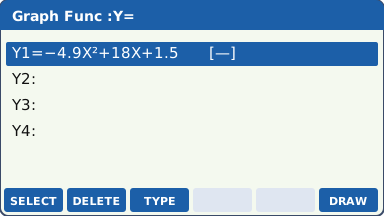
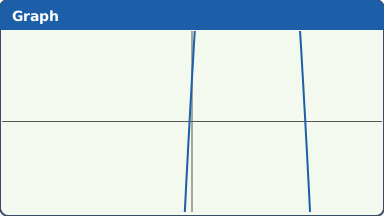
The Graph list (the F-keys this lesson uses are labelled) (our drawing of the fx-CG50 screen, not a photo). Press F6 (DRAW). In a window that was set for something else you may see almost nothing: here only two short, steep pieces of the curve, because the window is far too small for heights up to 18 m.
A blank or nearly blank screen does not mean the graph is wrong. It means the window is wrong.
A small window: most of the curve is off the screen (our drawing of the fx-CG50 screen, not a photo). Set the window from the question. SHIFT F3 (V-Window). The ball is in the air for t from 0 to about 4 seconds and goes no higher than about 20 m, so type Xmin 0, max 4, Ymin −2, max 20, with EXE after each. The window has a scale line and a dot line between the X values and the Y values: after Xmax press ▼ past scale and dot to reach Ymin (scale only moves the tick marks; dot is set for you). Press EXIT, then F6 (DRAW).
The question nearly always tells you the x range ("for 0 ≤ t ≤ 4"). For the y range, look at a few values in the TABLE app (lesson 7) or use Zoom AUTO.
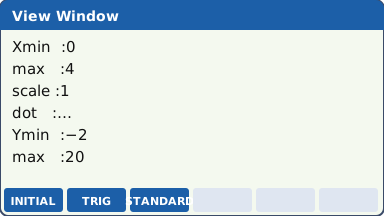
V-Window (the scale and dot lines are left out of this drawing) (our drawing of the fx-CG50 screen, not a photo). Now the whole flight shows: up, over the top and down to the ground.
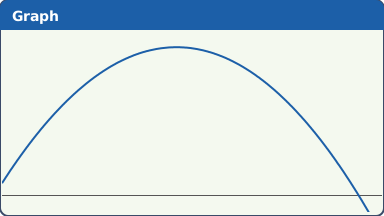
The same graph in a window chosen from the question (our drawing of the fx-CG50 screen, not a photo). Trace: SHIFT F1 (TRACE) puts a pointer on the curve and shows its X and Y at the bottom. Move it with ◀ and ▶. With two graphs drawn, ▲ and ▼ jump between them. EXIT ends Trace.
Trace only stops at the screen's dots, so its values are estimates. For an exact maximum, root or intersection use G-Solve (lesson 4).
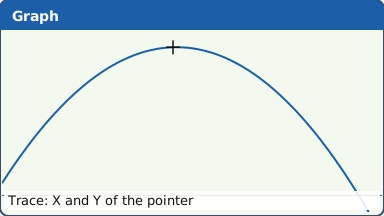
Trace: a pointer on the curve, with its X and Y along the bottom (our drawing of the fx-CG50 screen, not a photo). Zoom: while a graph is drawn, SHIFT F2 (ZOOM). F5 (AUTO) keeps your Xmin and Xmax and fits the y range to the curve. F1 (BOX): move the pointer to one corner, EXE, then the opposite corner, EXE, to zoom into that box. F3 (IN) and F4 (OUT) zoom about the pointer.
AUTO is the quickest fix when you know the x range but not the y range.
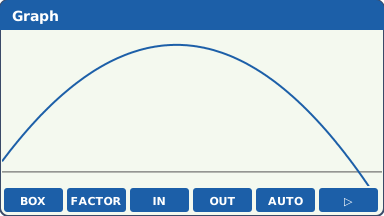
The ZOOM menu along the F-keys (our drawing of the fx-CG50 screen, not a photo). Getting back to a known view. In V-Window (SHIFT F3): F1 (INITIAL) puts back the standard window, Xmin −6.3, max 6.3, Ymin −3.1, max 3.1. F2 (TRIG) sets a window for sine and cosine graphs in the current angle mode. After zooming, SHIFT F2 (ZOOM) F6 (▷) F1 (ORIGINAL) returns to the window you had before you zoomed.
If you are ever unsure what the window is, open V-Window and read it, or type the numbers again from the question: that always works.
Changing the view is a normal part of every graph question: draw, look, change the window, draw again. It takes seconds, and it is how you spot a second root or a turning point that was off the screen.
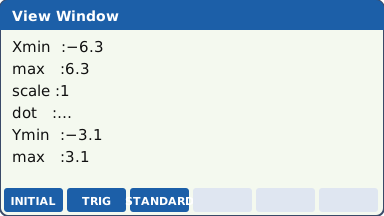
V-Window after F1 (INITIAL): the standard window (our drawing of the fx-CG50 screen, not a photo). Back in the Graph list (EXIT), highlight a function and press F1 (SELECT) to turn it off (its = is no longer highlighted) or on again. F2 (DELETE) then F1 (Yes) removes it.
Old graphs left switched on clutter the screen and make G-Solve ask which curve you mean. Turn off what you do not need.
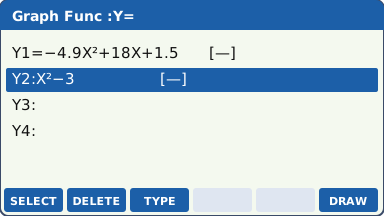
Y2 highlighted: F1 switches it off or on (our drawing of the fx-CG50 screen, not a photo).
Your turn: check your understanding
Try these straight after the key presses, on your own calculator, before looking at the answers.
- Fix a bad view. Draw y = x² − 8x + 10 after SHIFT F3 F1 (INITIAL). You only see bits of the curve and no lowest point. Change the View Window so the minimum point shows, then estimate it with Trace.
- In Rad mode draw y = 2 sin x using V-Window F2 (TRIG). What is wrong with the picture? Fix it by changing only Ymin and Ymax.
- Back to y = x² − 8x + 10 in a good window. Use Zoom BOX round the place where the curve crosses the x-axis on the left, then Trace to estimate that root to 2 decimal places. Finish with SHIFT F2 F6 (▷) F1 (ORIGINAL) to get your window back.
Show the answers
- For example Xmin −1, max 9, Ymin −8, max 12. The minimum is at about (4, −6). The INITIAL window only goes down to y = −3.1, so the bottom of the curve was below the screen.
- The tops and bottoms of the waves are cut off: the TRIG window is sized for sin x, which only reaches 1, but 2 sin x reaches 2. Set Ymin −3 and Ymax 3.
- About x = 1.55 (the exact root is 4 − √6). After ORIGINAL the screen shows the window you had before zooming.
Exam efficiency
- Choose the window from the question: the domain gives Xmin and Xmax; a few values of the function give Ymin and Ymax.
- Make the window a bit bigger than you need (Ymin −2, not 0) so the axis and the ends of the curve are not hidden under the edge.
- If a sketch is asked for, copy the window onto your axes: label the end points and the scale you used.
- Trace is for looking. Use G-Solve for any value you write down.
- F3 (TYPE) in the Graph list changes Y= to other kinds of graph (such as X= for a vertical line). Leave it on Y= for the exam unless you need another type.
Worked exam-style example
Question. The number of fish in a lake is modelled by N(t) = 800 ÷ (1 + 15e−0.6t), for 0 ≤ t ≤ 15, where t is in years. (a) Find N(0). (b) Sketch the graph of N for 0 ≤ t ≤ 15. (c) What value does N approach?
Enter Y1 = 800 ÷ (1 + 15e^(−0.6X)). e^ is SHIFT ln. Press EXE.
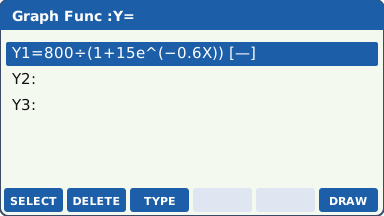
What the screen shows after this step (our drawing of the fx-CG50 screen, not a photo). (a) N(0) = 800 ÷ 16 = 50, and N can never be more than 800. So the window is Xmin 0, max 15, Ymin −50, max 900: SHIFT F3, type the values (press ▼ past scale and dot to reach Ymin, as in step 3), EXIT, F6 (DRAW).
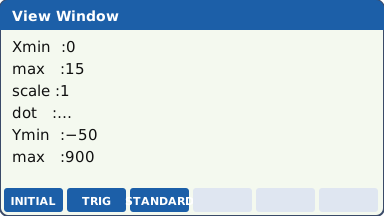
What the screen shows after this step (our drawing of the fx-CG50 screen, not a photo). (b) The S-shaped curve: slow growth, fast growth, then levelling off. (c) Trace to the right-hand end: N(15) is 798.5218187, so N approaches 800.
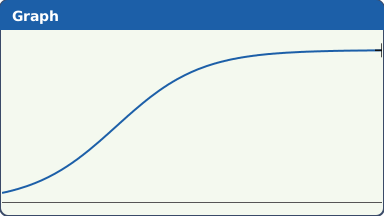
The logistic curve in the chosen window (our drawing of the fx-CG50 screen, not a photo).
What to write down
(a) N(0) = 50.
(b) A sketch on axes from t = 0 to 15 and N = 0 to 900: start at (0, 50), steepest in the middle, flattening towards N = 800. Label the axes and both ends.
(c) As t gets large, e−0.6t → 0, so N → 800.
Practice
Do these on your own calculator. Write the answers to 3 significant figures unless the task says otherwise.
- Draw y = x³ − 12x. Find a window that shows both turning points, and give the y-values of the turning points from the graph (use Trace, then check them in lesson 4).
- In Rad mode draw y = 3 sin(2x) using V-Window → F2 (TRIG). Then set Xmin to 0 and change Xmax so exactly one cycle shows from x = 0. What Xmax did you use (3 s.f.)?
- Draw y = 500e−0.2x for 0 ≤ x ≤ 20. Choose Ymin and Ymax, and give the y-value at the right-hand end (3 s.f.).
- Draw y = x² and y = 2x together. Find a window that shows all three places where they meet, and estimate each with Trace.
- Switch Y2 off with F1 (SELECT) and redraw. Then delete it with F2 (DELETE) F1 (Yes). What changes on the graph screen each time?
Show the practice answers
- For example Xmin −5, max 5, Ymin −20, max 20. The turning points are at x = ±2, with y = 16 and −16.
- Xmin 0, Xmax = π = 3.14 (the period of sin 2x).
- For example Ymin −20, Ymax 550. At x = 20, y = 9.16.
- For example Xmin −2, max 5, Ymin −2, max 20. They meet at x ≈ −0.767, x = 2 and x = 4.
- Switched off: Y2 is not drawn but stays in the list. Deleted: it is gone from the list as well.
Common mistakes
- A window copied from an old question: always set it for this one.
- Ymin set to 0: the x-axis sits on the edge of the screen and roots are easy to miss.
- Writing down a Trace value as if it were exact: it is only as good as the dot spacing.
- Old graphs left selected: G-Solve then asks which graph, and the screen is hard to read.
- The wrong angle mode for a trig graph: check SET UP (Angle line) in the Graph app before you draw.
1-minute quick check
Answer these without looking back. Most need no calculation: they check that the key presses have stuck.
- Which key types X in the Graph list?
- Which keys open V-Window?
- You know the x range but not the y range. Which zoom?
- How do you stop Y2 being drawn without deleting it?
- Is a Trace reading good enough to write down as a final answer?
Show the quick-check answers
- X,θ,T
- SHIFT F3
- Zoom AUTO: SHIFT F2 then F5
- Highlight it in the list and press F1 (SELECT).
- No: it is an estimate. Use G-Solve.
Teaching this lesson (about 55 minutes)
| 0–5 min | Starter: show the ball graph in a tiny window. "Is the graph wrong?" Collect ideas. |
| 5–14 min | Steps 1–4: enter, draw, then set the window from the question. Students explain where each number came from. |
| 14–22 min | Steps 5–7: Trace, Zoom (AUTO, BOX, IN, OUT) and getting back with INITIAL, TRIG and ORIGINAL. |
| 22–25 min | Step 8: SELECT and DELETE. |
| 25–32 min | Your turn: fix the bad views, then compare windows with a partner. |
| 32–40 min | Worked example: the fish model, including the sketch on paper. |
| 40–51 min | Practice tasks 1–5. |
| 51–55 min | 1-minute quick check. |
Students need their own fx-CG50. With a projector, the calculator-skills guides below have a Show on the board view and an animated walkthrough of the key presses.
Matching calculator guides
- How to find intersections, zeros, maximum and minimum points on the Casio fx-CG50, TI-84 Plus CE and TI-Nspire CX II
- How to find the roots and vertex of a quadratic on the Casio fx-CG50, TI-84 Plus CE and TI-Nspire CX II
- How to draw trig graphs and read off max, min and solutions on the Casio fx-CG50, TI-84 Plus CE and TI-Nspire CX II
- How to make a table of values on the Casio fx-CG50, TI-84 Plus CE and TI-Nspire CX II