How to find the roots and vertex of a quadratic on the Casio fx-CG50, TI-84 Plus CE and TI-Nspire CX II
On the fx-CG50: MENU → EQUATION → F2 (POLYNOMIAL) → F1 (degree 2).On the TI-84 Plus CE: 2nd trace (CALC) → 2: zero.On the TI-Nspire CX II: menu → Analyze Graph → Zero.
Solve ax² + bx + c = 0 and find the turning point (vertex) of y = ax² + bx + c, to check factorising, the formula or completing the square. Exact keystrokes for the fx-CG50 first, then the other calculators, a worked example you can check your answers against, the mistakes that cost marks, and the same thing in Desmos.
When you need it
Quadratic models in AI (the maximum height of a ball, the minimum cost) and the roots, vertex and axis of symmetry in AA. On AA Paper 1 you find these by hand; on Paper 2 and every AI paper, write the equation, then the calculator's values to 3 s.f.
Practise it: SL AA quadratic functions · SL AI quadratic modelling.
Which IB course and paper
| Course | GDC papers | What you use it for |
|---|---|---|
| AA SL | Paper 2 (Paper 1 is calculator-free) | Roots, the vertex and the axis of symmetry on Paper 2; on Paper 1 by factorising, the formula or completing the square. |
| AA HL | Papers 2 and 3 (Paper 1 is calculator-free) | As SL. |
| AI SL | Papers 1 and 2 | Quadratic models: the maximum or minimum (vertex) and where the model is zero. |
| AI HL | Papers 1, 2 and 3 | As SL. |
A GDC is allowed on every AI paper and on AA Papers 2 and 3; AA Paper 1 is calculator-free, so learn the method by hand as well.
Topic notes: Quadratics, discriminant, and the nature of roots (AA SL) · Quadratic functions (AI SL).
Keystrokes on your calculator
Pick your calculator: the page remembers it next time.
Quadratic graphs: roots and vertex on the Casio fx-CG50
Written for OS 3.80 (menus unchanged from OS 3.60 onwards as far as we can tell). Casio fx-CG50: graphic (GDC).
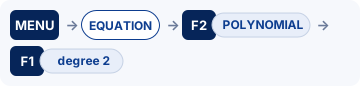
- Roots: MENU, choose EQUATION, F2 (POLYNOMIAL), F1 (degree 2). Type 2, −8, 3 with EXE after each, then F1 (SOLVE).
- Vertex: MENU 5 (GRAPH). Type Y1 = 2X² − 8X + 3 and EXE, then F6 (DRAW).
- SHIFT F5 (G-SOLVE), then F3 (MIN) for the vertex here (F2 (MAX) when a is negative).
- Still in G-SOLVE: F1 (ROOT) gives a root and ► the next one; F4 (Y-ICEPT) gives where the curve crosses the y-axis.
- If MIN or ROOT finds nothing, the point is outside the View Window: SHIFT F3 (V-WINDOW) and widen it.
Quadratic graphs: roots and vertex on the TI-84 Plus CE
Written for OS 5.8.x. TI-84 Plus CE: graphic (GDC); also the TI-84 Plus CE Python / CE-T Python Edition.

- y=: Y1 = 2X² − 8X + 3 (X is the X,T,θ,n key, use (−) for negatives). zoom 6: ZStandard.
- 2nd trace (CALC) → 2: zero. Move left of a root and press enter (Left Bound?), right of it and enter (Right Bound?), then near it and enter (Guess?). Repeat for the other root.
- 2nd trace → 3: minimum (4: maximum when a is negative), with the same Left Bound, Right Bound and Guess. The X= and Y= at the bottom are the vertex.
- minimum and maximum are found numerically, so the last digits can wobble (1.9999998 for 2): round to 3 s.f.
Quadratic graphs: roots and vertex on the TI-Nspire CX II
Written for OS 6.x. TI-Nspire CX II: graphic (GDC), non-CAS; the CX II CAS is not allowed in IB, A Level or IGCSE exams.

- Add a Graphs page and type f1(x) = 2x² − 8x + 3, enter.
- menu → Analyze Graph → Zero. Click to the left of a root (lower bound) and to the right (upper bound). Repeat for the other root.
- menu → Analyze Graph → Minimum (Maximum when a is negative), with lower and upper bounds either side of the vertex.
For teachers: Show on the board Print a keystroke card Teaching GDC skills
Worked example
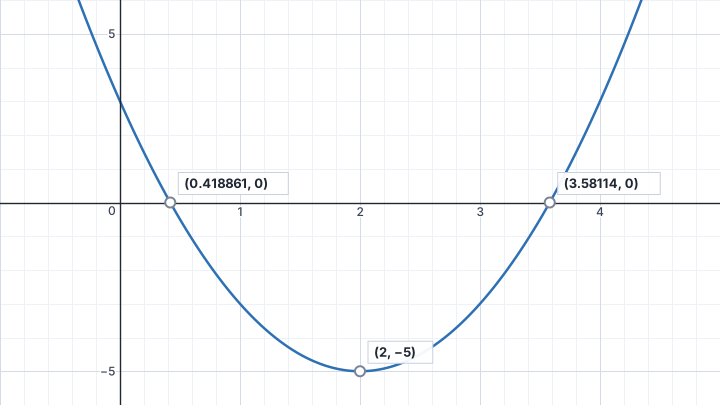
y = 2x² − 8x + 3. Find (a) the roots of 2x² − 8x + 3 = 0, (b) the coordinates of the vertex.
Answers (checked with Python)
(a) x = 0.418861 and x = 3.58114 (exactly 2 ± √10⁄2, from the formula: the discriminant is 64 − 24 = 40). (b) The vertex is (2, −5): completing the square gives y = 2(x − 2)² − 5. It is a minimum because a = 2 is positive.
Common calculator mistakes
- Typing −8 with the subtraction key instead of the negative key: a Syntax ERROR, or a different equation.
- Giving only the x-coordinate of the vertex when the question asks for its coordinates, or the minimum point when it asks for the minimum value (that is just y).
- Calling the vertex a minimum when a is negative: it is a maximum.
- Writing the decimals when the question says "exact" or "in surd form": use the formula or completing the square by hand.
- A negative discriminant means no real roots: the graph does not cross the x-axis. Do not report a calculator error or complex roots as "the answer" unless the question asks for complex roots.
- Context: a vertex at (2.5, 31.25) answers "the maximum height is 31.3 m, reached after 2.5 s". Say what each number means.
- Accuracy: unless the question says otherwise, IB markschemes want answers exact or to 3 significant figures. Keep the full calculator value for later parts and round only the answer you write down (x = 2.094551… is written 2.09, not 2.1 or 2.0946).
If you get an error
fx-CG50: Ma ERROR
Ma ERROR Casio's Math ERROR: the result is outside the allowable calculation range, or you are trying to do an illegal mathematical operation, such as dividing by zero. Check: Look for a zero denominator, sin⁻¹ or cos⁻¹ of a number bigger than 1 (often a wrong side or angle in the sine or cosine rule), the log of 0 or of a negative number, and a value stored in a variable earlier that you forgot about. Fix: Casio's advice: check your input values and change them so the result is within the allowable range.
TI-84 Plus CE: ERR:DOMAIN, ERR:INVALID DIM, ERR:SYNTAX
ERR:DOMAIN A value given to a function or instruction is outside the values it accepts. In a regression, TI says it means the data do not suit the model you chose. Check: Is every input allowed? σ must be positive, p between 0 and 1, and sin⁻¹ or cos⁻¹ needs a number from −1 to 1. Exponential and power models need positive data. Fix: Change the value that is out of range, or choose a model that suits the data.
ERR:INVALID DIM TI's knowledge base: one or more stat plots are turned on, but the lists they use are empty. Check: A stat plot left on from a statistics question, so the error appears when you graph a function. Fix: Turn off the stat plots you are not using, or put the data back in the lists.
ERR:SYNTAX The command contains a syntax error: a misplaced function, argument, bracket or comma. Check: TI points out that subtract − and negative (−) are different keys, and using the wrong one causes this error. Then check the brackets and commas. Fix: Find the misplaced function, argument, bracket or comma and correct it.
TI-Nspire CX II: Domain error, Syntax error
Domain error An argument must be in a specified domain, and this one is not (TI's example: rand(0)). Check: Is every input allowed? σ must be positive, p between 0 and 1, and sin⁻¹ or cos⁻¹ needs a number from −1 to 1. Fix: Change the value that is out of range.
Syntax error The syntax checker found a problem. Check: A missing bracket or comma. Fix: Correct the expression and try again.
Do it in Desmos
Not in the exam. Desmos is not an approved calculator for IB exams, so never rely on it for Paper 2. It is excellent for learning, checking a GDC answer and building graphs for your Internal Assessment (IA).
- Type y = 2x^2 − 8x + 3.
- Click the curve: the roots and the vertex appear as grey points. Click each one to see its coordinates.
Open desmos.com/calculator (free, in any browser) and type:
y=2x^{2}-8x+3
Questions
Can I use a calculator for quadratic graphs: roots and vertex in the exam?
In IB Maths you can use one approved GDC on every AI paper and on AA Papers 2 and 3, in exam mode. AA Paper 1 is calculator-free, so learn the method by hand as well.
What are the fx-CG50 keystrokes for quadratic graphs: roots and vertex?
Roots: MENU, choose EQUATION, F2 (POLYNOMIAL), F1 (degree 2). Type 2, −8, 3 with EXE after each, then F1 (SOLVE). Then Vertex: MENU 5 (GRAPH). Type Y1 = 2X² − 8X + 3 and EXE, then F6 (DRAW). Then SHIFT F5 (G-SOLVE), then F3 (MIN) for the vertex here (F2 (MAX) when a is negative). The full steps and the other calculators are in the keystrokes section above.
Does this work on other calculators?
Yes. This page has keystrokes for the Casio fx-CG50, TI-84 Plus CE and TI-Nspire CX II. The worked example has the same answers on every model, so use it to check.
What should I write as working?
Write the maths, not the key presses: say what you are finding in normal notation (the equation, the probability statement or the integral), then the calculator's answer exact or to 3 significant figures unless the question says otherwise. Keep full accuracy in later parts.
More calculator skills
What else is free here
- Every syllabus topicA page for each AA and AI sub-topic, with exam-style questions and mark schemes.
- GDC keystrokes by topicTI-Nspire and Casio fx-CG50 guides for the calculator papers.
- Casio fx-CG50 guideEvery menu you need for IB Maths and the exam traps, on one page.
- Free formula sheets (PDF)One page per course, marking which formulas are not in the IB booklet.
Save your scores and practise the questions that use thisA free account remembers the questions you have done and brings you back to this page.
Join freeAlready have an account? Sign in
Sources
- Casio fx-CG50 Software User's Guide, OS 3.70 (PDF) : Casio fx-CG50, OS 3.80 (menus unchanged from OS 3.60 onwards as far as we can tell).
- TI-84 Plus CE guidebook (Texas Instruments) : TI-84 Plus CE, OS 5.8.x.
- TI-Nspire CX II guidebooks (Texas Instruments) : TI-Nspire CX II, OS 6.x.
- Desmos Help Center for the Desmos functions.
Menu names are taken from each manufacturer's manual for the models shown. Menus can move slightly between OS updates: if a screen looks different on yours, the manual for your version is the reference, and please tell us so we can update this page. A calculator with no tab here has no checked steps for this skill yet. Worked-example answers were recomputed independently in Python.