Classroom Toolkit
Sign in with your teacher licence email to unlock the worksheet builder, homework setter, and class analytics.
Classroom Toolkit
Lesson-time shortcuts — pick one to get started
All four below take one click. The rest of the site (courses, resources, AI tools) is up in the nav whenever you want to browse.
🚀 Get your class up and running in 3 minutes ▾
Follow the three steps below to add classes and students. Everything else on this page — worksheets, homework, live games, activities, analytics — starts working the moment your first student signs in.
Give it a name (e.g. Y12 SL AI Set 1) and pick the seat count. You'll get a 6-character class code straight away.
Open class creator → 📥 Bulk pastePaste a whole roster from Excel, Google Sheets or your MIS — we add every email in one click and auto-email each student a sign-in link. Or add one at a time from the class card.
Open bulk import →Each student we add auto-receives a welcome email with a one-click sign-in link. Each student gets their own initial password in that email.
See sign-in details ↓🔑 Initial password: each student gets their own initial password in their welcome email, and is forced to pick a new one the first time they sign in. Student lost it? Use Reset password on their row in the class page to get a fresh one to pass on.
🌐 Sign-in URL:
ibmathrevision.com
— students click Sign in at the top-right of any page. No separate signup step.
📧 Welcome email: auto-sent to every student the moment they're added to a class. If it bounces or the student never activates, use the ✉ button on their row to resend the sign-in link.
📥 Bulk import (teachers): use the "Paste a roster" flow above ↑ — up to 200 emails per class in one click.
Need more? Read the Add students FAQ, watch a two-minute overview on Schools, or email pbromfield@ibmathrevision.com for hands-on onboarding.
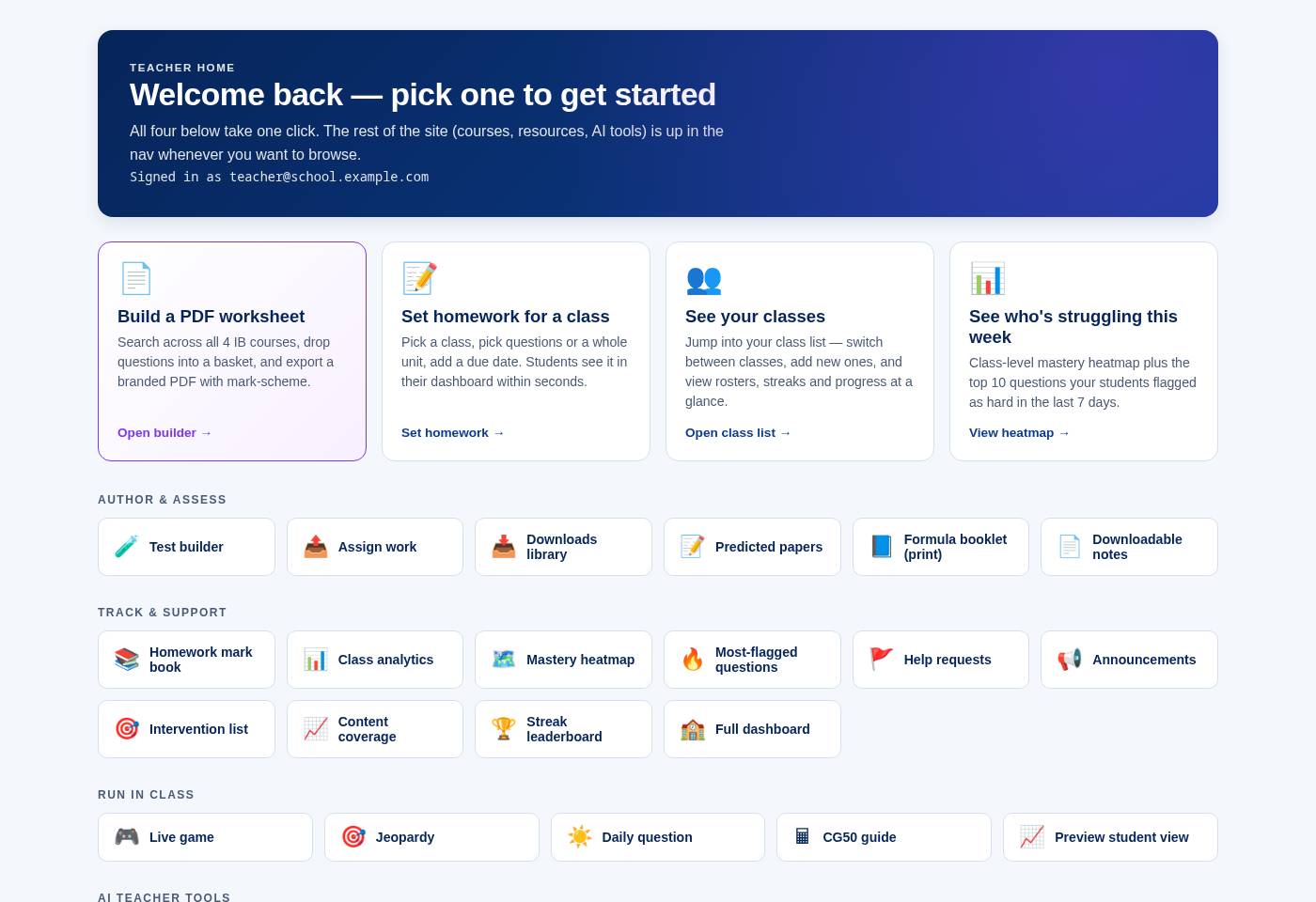
Build a PDF worksheet
Search across all 4 IB courses, drop questions into a basket, and export a branded PDF with mark-scheme.
Set homework for a class
Pick questions, a whole unit or your own PDF worksheet, add a due date. Students upload photos of their working; you mark it in the Marking inbox.
See your classes
Jump into your class list — switch between classes, add new ones, and view rosters, streaks and progress at a glance.
See who's struggling this week
Class-level mastery heatmap plus the top 10 questions your students flagged as hard in the last 7 days.
🎲 Classroom activities Open the generator — print or send to class in one click All 17 modes →
Author & assess
Track & support
Run in class
AI teacher tools
Admin & account
Owner-only tools 🔑
FAQ & how-to
📄 How do I build a PDF worksheet?
Click the purple "Build a PDF worksheet" card above (or press ⌘K / Ctrl+K from any page). Search across all 4 IB courses, drop questions into your basket, then hit "Preview & download PDF". The pill in the modal header shows how many questions you can pick from — if it's red, your licence isn't fully unlocked (contact support).
Tick a specific Unit at the top of the modal (PK / U1…U5), then tick one or more Subtopics underneath. The subtopic row is scrollable when a unit has lots of them — e.g. Unit 1 SL AI shows Financial Mathematics, Sequences & Series, Percentage Change, etc. Search still narrows further inside your ticked filters.
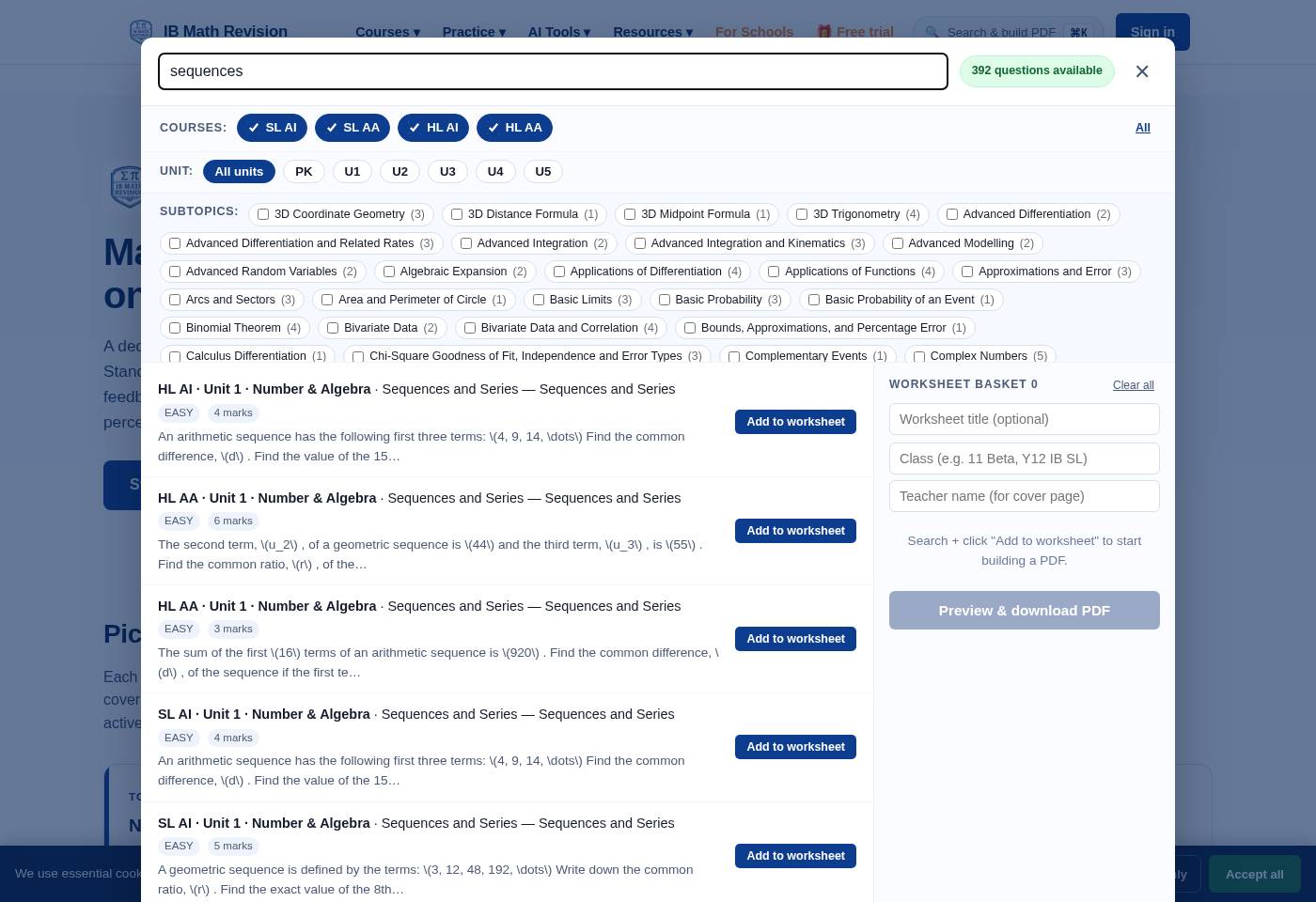
🎯 How do the Unit → Subtopic filters work?
Both the Worksheet Builder (⌘K) and the Classroom Activities generator (/activities.html) now use a two-step drill-down: pick your unit first, then tick the subtopics you want. In the Worksheet Builder the Subtopic row is scrollable (drag with a two-finger swipe on trackpad) so you can browse every subtopic in a busy unit like Unit 2. Clear-all button at the far right of each row resets your ticks.
Great for building “just quadratics” or “just financial maths” worksheets in seconds.
📝 How do I set homework?
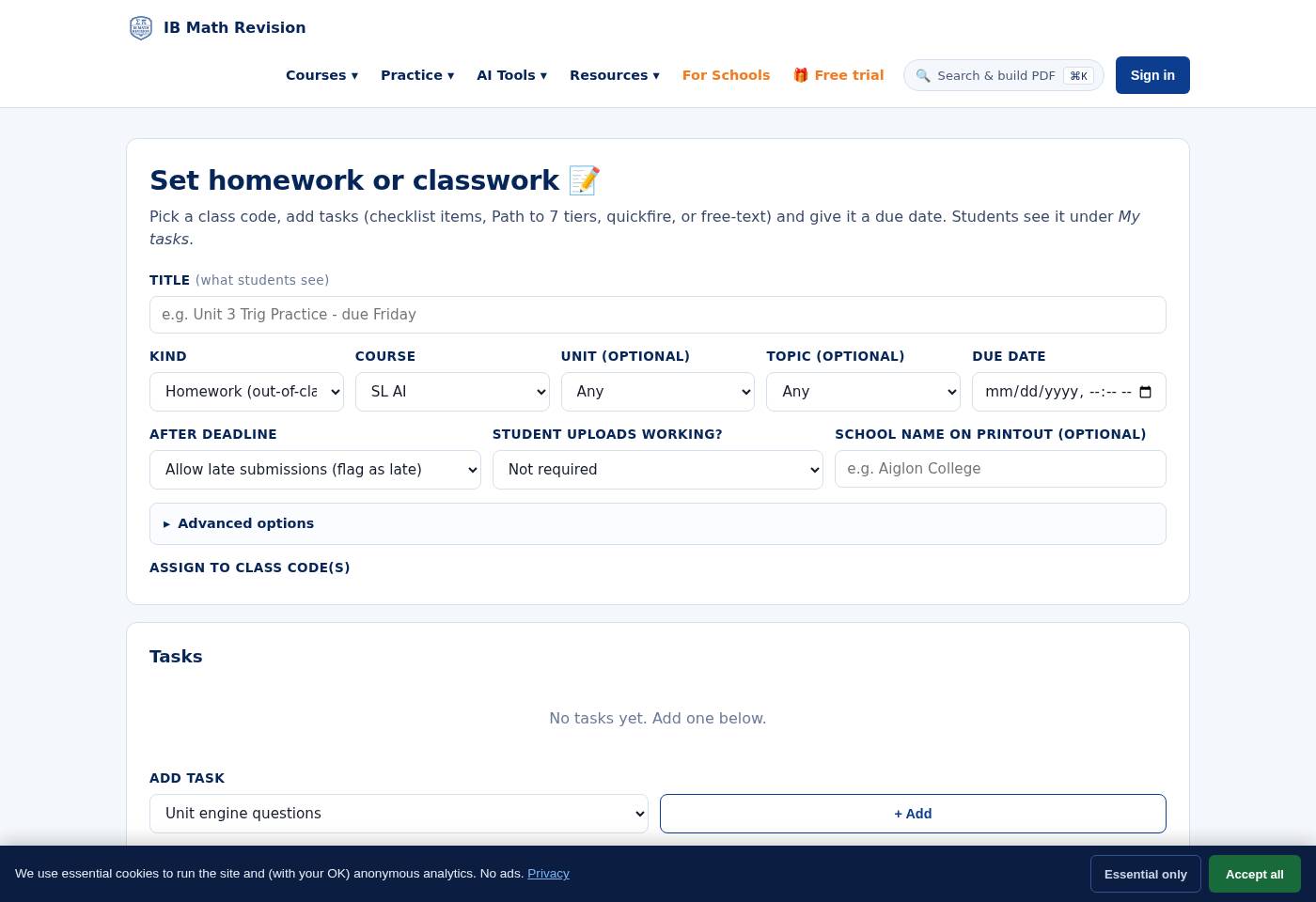
Head to /assign.html. Pick a class, then pick either a set of questions from a topic OR a whole unit. Add a due date. Students see it on their dashboard. About a day after you set it, anyone who hasn't opened it gets a reminder email, and the day before it's due, anyone who hasn't handed it in gets another.
Have your own worksheet? Choose Your own PDF in Set homework (or open Set homework with your own PDF): upload the worksheet and, if you like, its mark scheme. Students download it and hand in photos or a PDF of their working; they only see your mark scheme after they hand in and the deadline passes.
Everything handed in waits in the Marking inbox. Mark it yourself, or, if your plan includes AI marking, have it marked against the mark scheme question by question. You approve the marks, and only approved marks update a student's topic mastery.
You can also assign the same worksheet you just built via "Send to class" in the worksheet-builder modal, or push any Classroom Activity to your class via Activities → Send to class.
📊 How do I see who's struggling?
Two views. The Mastery heatmap shows every student vs every topic, red-to-green. The Most-flagged questions list shows what students clicked "I got this wrong" on in the last 7 days — a great pool for next lesson's do-now. Both live inside the Track & support tile row above.
👨🎓 How do I add students to my class?
Open Full dashboard → find the class section → click "Invite students". You'll get a class-specific join link; share it via email/LMS. Alternatively bulk-add via CSV in Provision users (owner-only).
Initial password: everyone we provision (both students and teachers) gets their own random initial password in their welcome email and is forced to change it on their first sign-in via /change-password.html. There's no separate “activate” or “first-time signup” step. (Accounts that already exist — e.g. a student who signed up themselves — keep their existing password.)
👀 Can I see what students see?
Yes — click the Preview student view tile above. It renders the student dashboard as if you were a student on your school's licence.
The signed-in Student Home is a single, focused screen — a big “Continue Path to 7” card, today’s study plan, the daily question, a homework-streak strip up top, then the course rail. All the other tools (practice, past papers, AI, community) collapse into a “More tools” drawer so students aren’t drowning in tiles the moment they sign in. Signed-in students are also redirected straight to this home from any marketing page.
🎬 What are the on-demand video walkthroughs?
Every question on the DP unit pages has a "🎬 Video" button. The first time anyone asks, an animated, narrated walkthrough is built from that question's mark scheme (AI-written, checked automatically against the scheme's marks) and then cached for everyone; building a new one can take up to a minute, and if the check fails you see an error instead of a video. Paid plans get unlimited walkthroughs; signed-in free accounts get 3.
🧠 How does AI IA feedback work?
Upload your student's IA PDF — the AI reviewer scores it against the IB criteria A–E, with a mark for each criterion and comments that quote the draft. Use it on early drafts; final grading should still be yours.
🎮 How does the live in-class game work?
Open the live game to host, project the room code, students join at /play on their phones. Pick topics, this week's lesson, a Skill Builder topic or your own saved set; run it as a teacher-paced live lesson or a timed quiz race. Great for lesson starters — 6-8 mins.
🎲 What's the Classroom Activities generator?
Open /activities.html to spin up 17 different lesson-ready formats from any (course, unit, subtopic) combo — Treasure Hunt, Maths Café, Wipeout, Confidence MCQ, Peer Review and more. Print for card-sorts on paper or push straight to your class as a digital homework via “Send to class”.
Use the Subtopic filter (row 2b) to narrow to just the section you're teaching this week.
📰 Where do the blog articles come from?
Each week a draft is opened from the content calendar, then edited and approved by a person before it is published. Nothing goes live without that review.
📥 Bulk import students
Paste first name, surname, email — one student per line (comma or tab-separated, straight from Excel/Sheets/your MIS) — or just a plain list of emails if you don't have names handy. Every added student is auto-emailed a one-click sign-in link.
first_name, surname, email
🎲 Send activity to a class
One click — students see it in their assignment dashboard.
Students see it in their dashboard within seconds.
More for IB Maths teachers
- Starter and plenary question library (1,680 questions with mark schemes)
- Weekly starter tasks for every course and term
- New IB Maths courses from August 2027: what the IB has confirmed and how to plan for 2027–28
- IA launch lesson: a ready-to-teach introduction to the exploration
- School Champions: the weekly cross-school live-game league
- How mastery tracking works and how to hide it
- Data Processing Agreement for your school's DPO
- Install the app on classroom laptops and phones